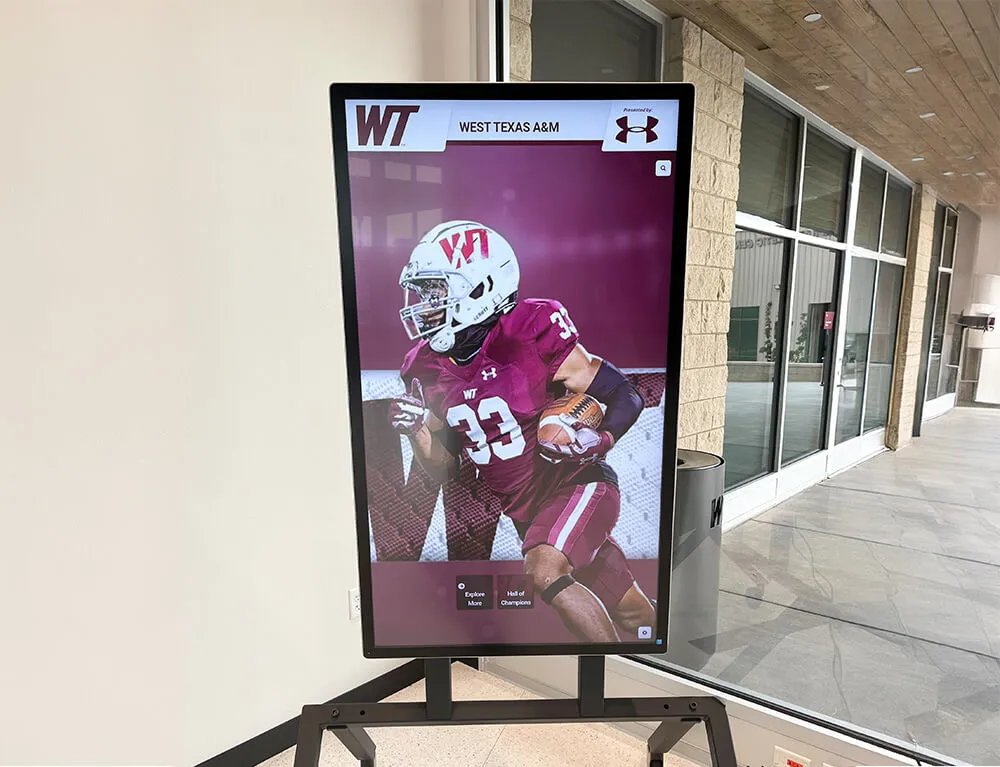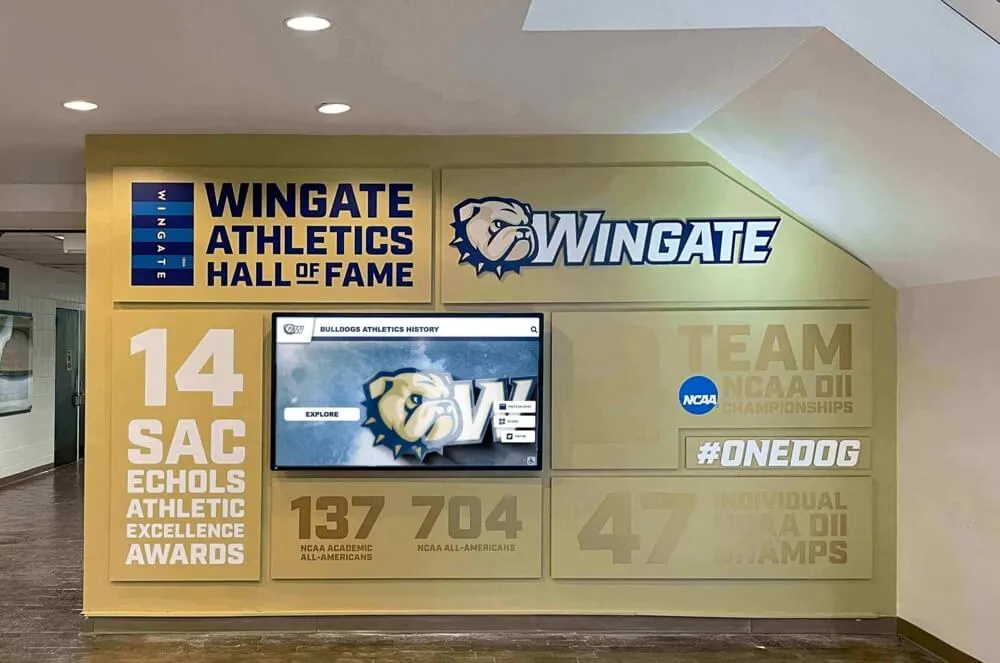




Organizations researching interactive touch screen digital signage need clear answers about how the technology actually works, what hardware and software are required, and what a realistic installation looks like before committing. Intent: Research
Interactive touch screen digital signage combines commercial display hardware with touch-sensing technology and content management software to create experiences where visitors actively engage with information rather than passively viewing it. Unlike standard digital signs that broadcast content on a loop, interactive displays respond to user input—allowing visitors to search donor directories, browse athletic records, navigate campus maps, explore recognition profiles, or access building directories on their own terms.
This guide covers the complete picture: the underlying touch technologies, the hardware and software components that make up a working system, physical installation requirements, content strategy, accessibility obligations, realistic cost ranges, and what to evaluate when comparing systems.
When an institution installs a touchscreen kiosk in a lobby, gymnasium, or hallway, visitors encounter only the finished surface—a polished screen that responds to their fingertips. Behind that surface is a layered system of hardware, software, and network infrastructure that each play a specific role. Understanding those layers helps organizations ask the right questions before purchasing, avoid under-specifying systems, and set realistic expectations for what installation and management involve.

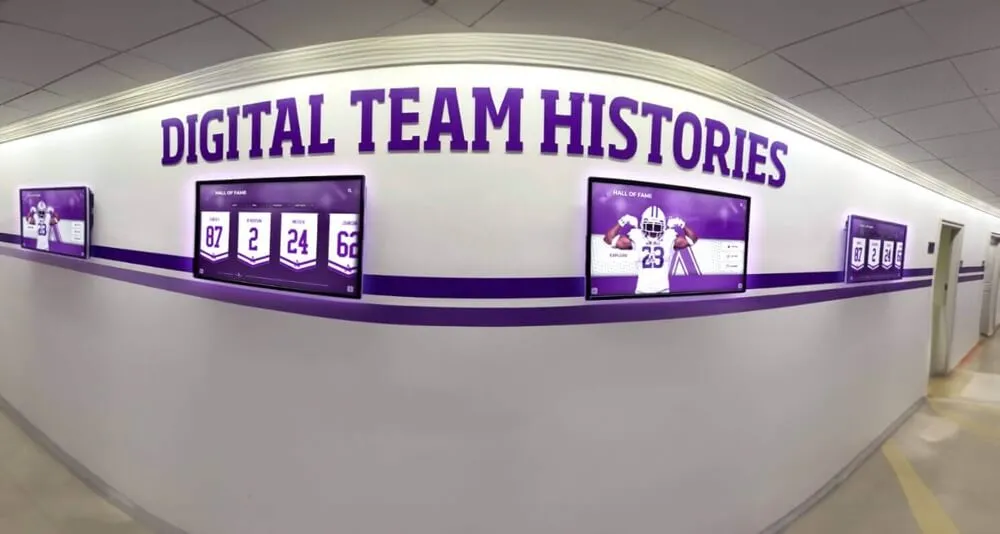
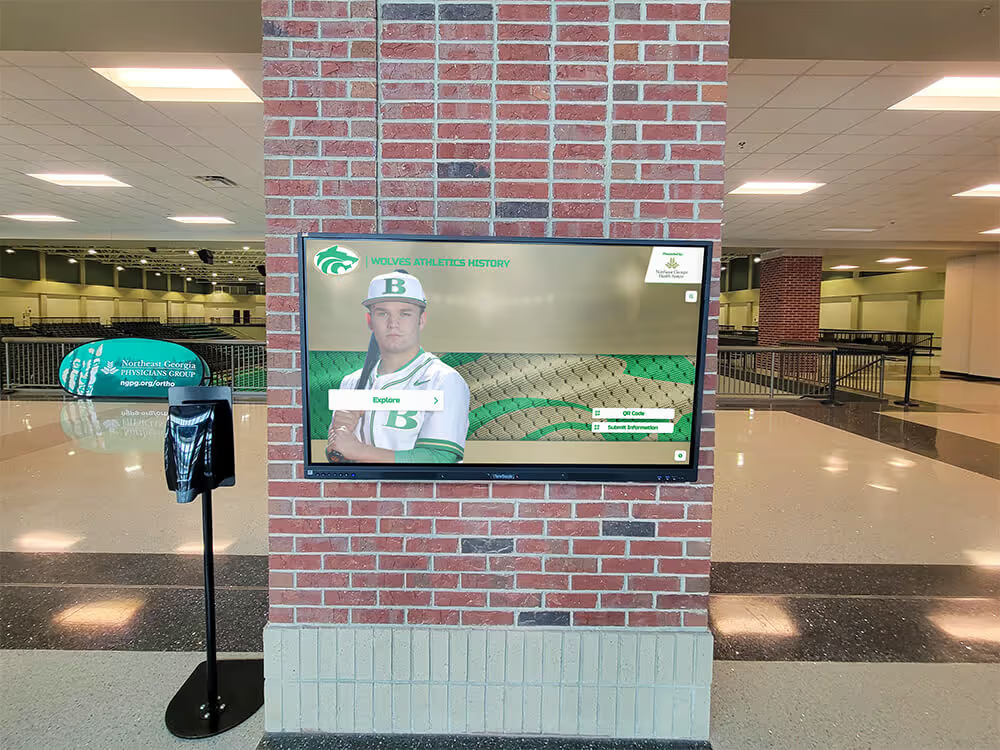
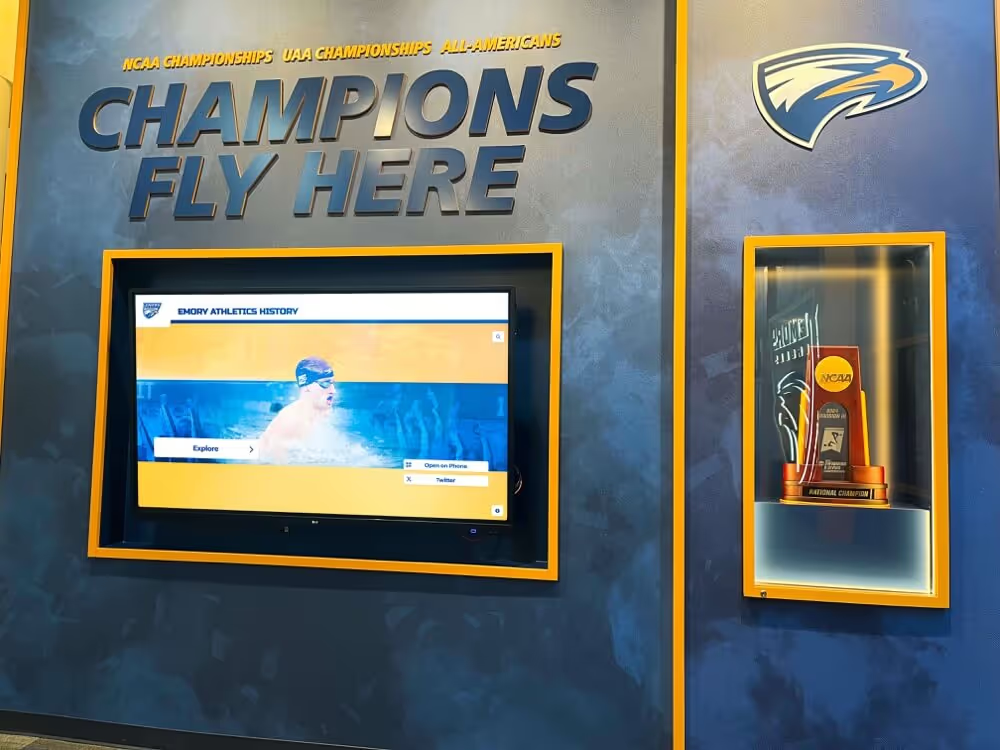
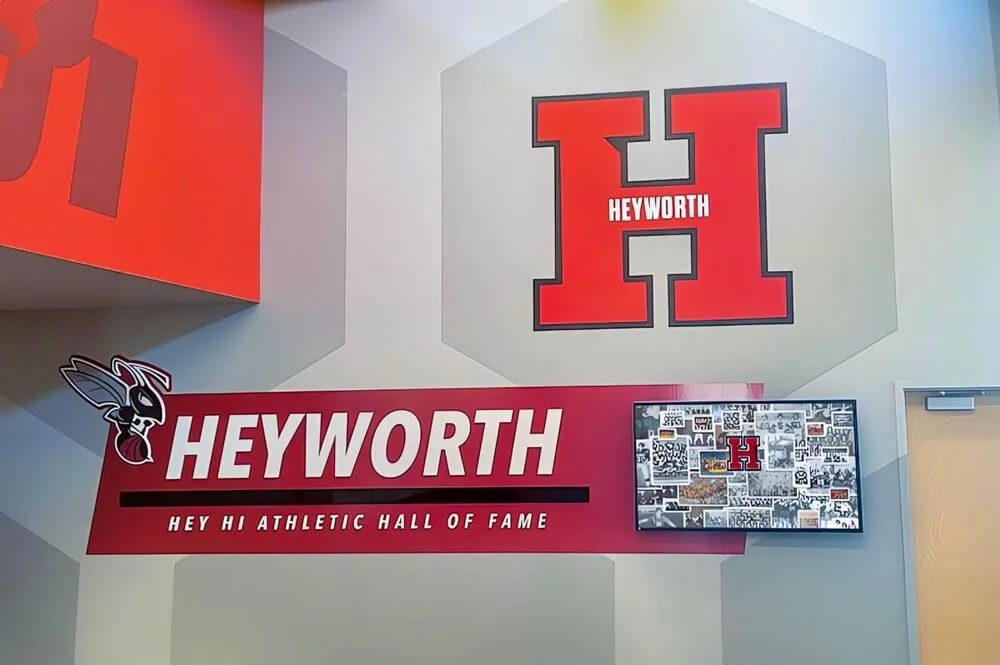
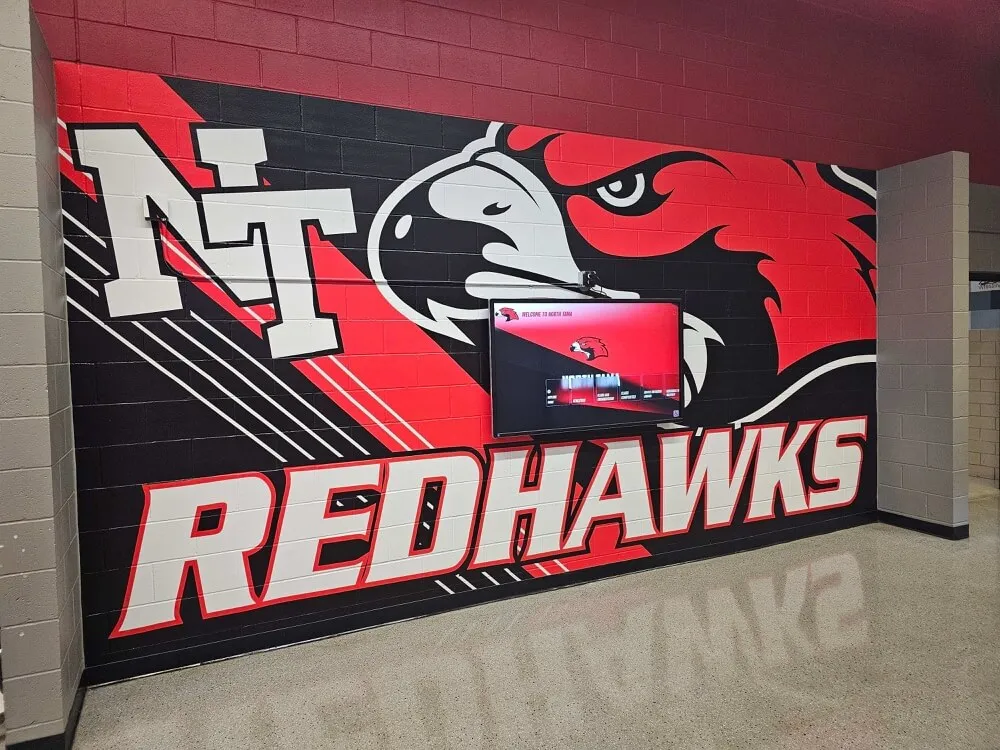
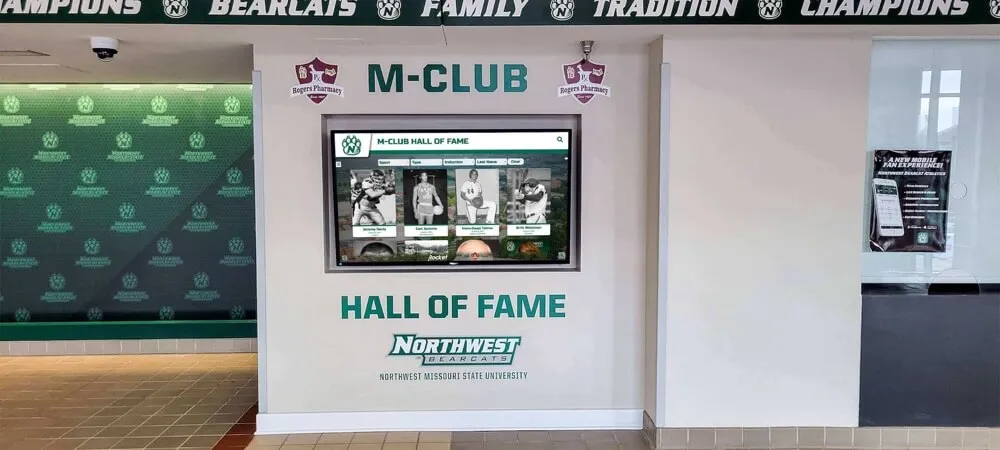
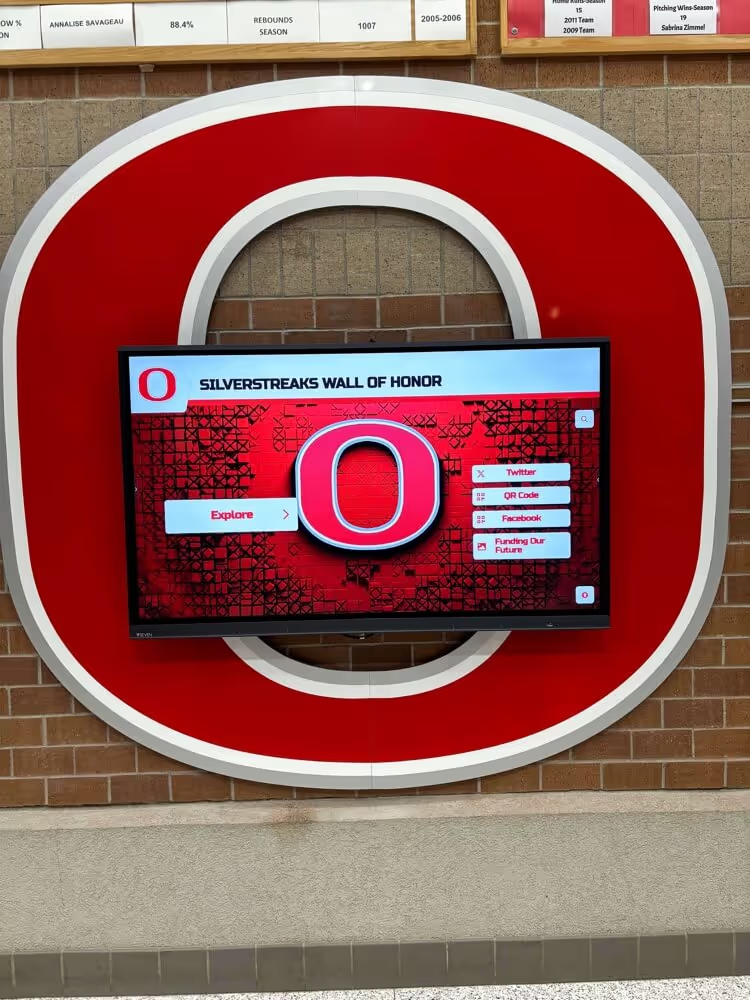
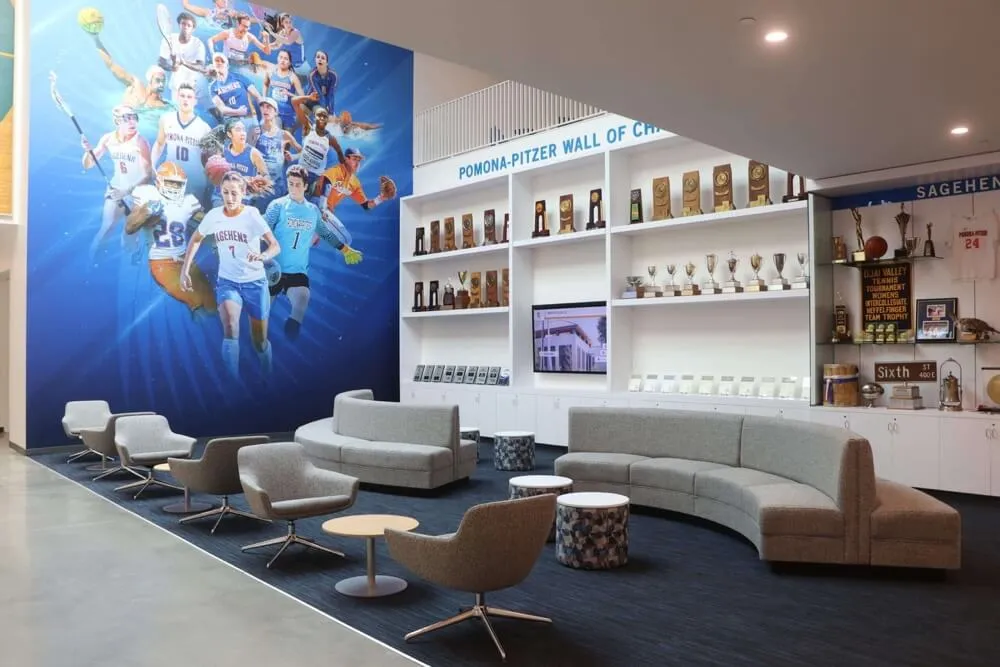
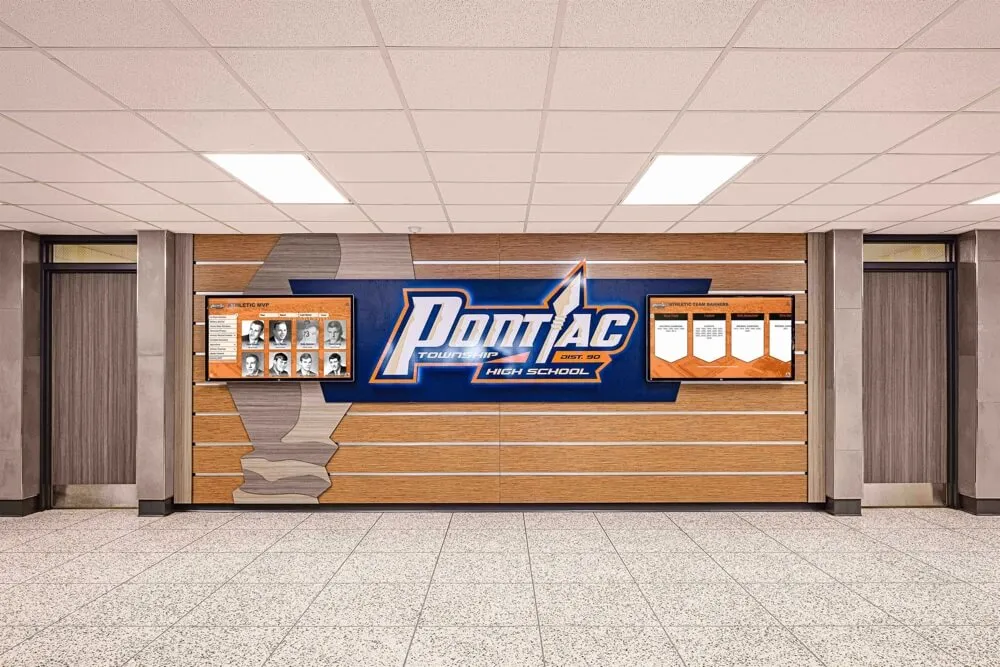
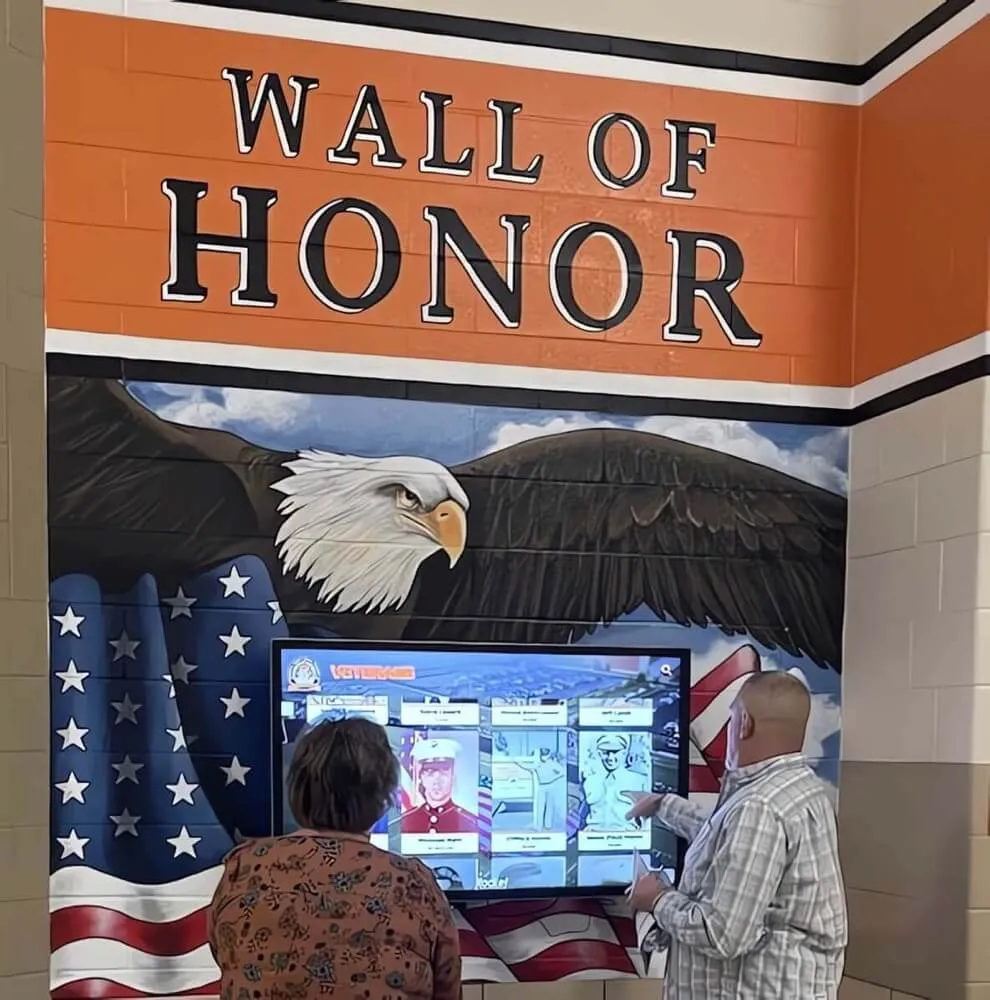
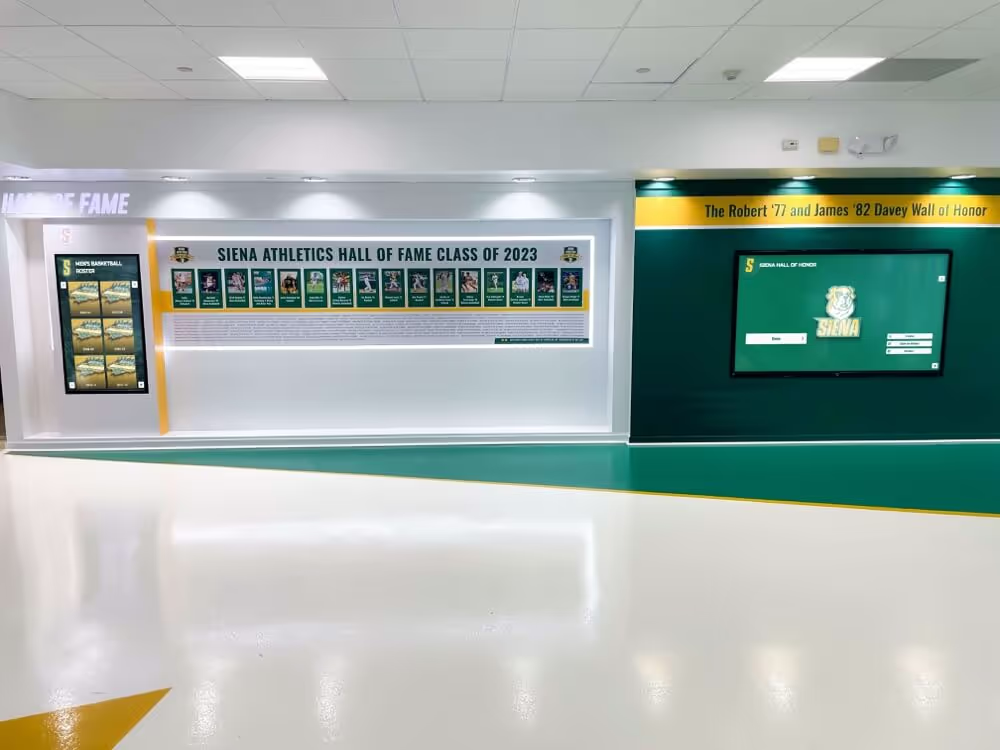
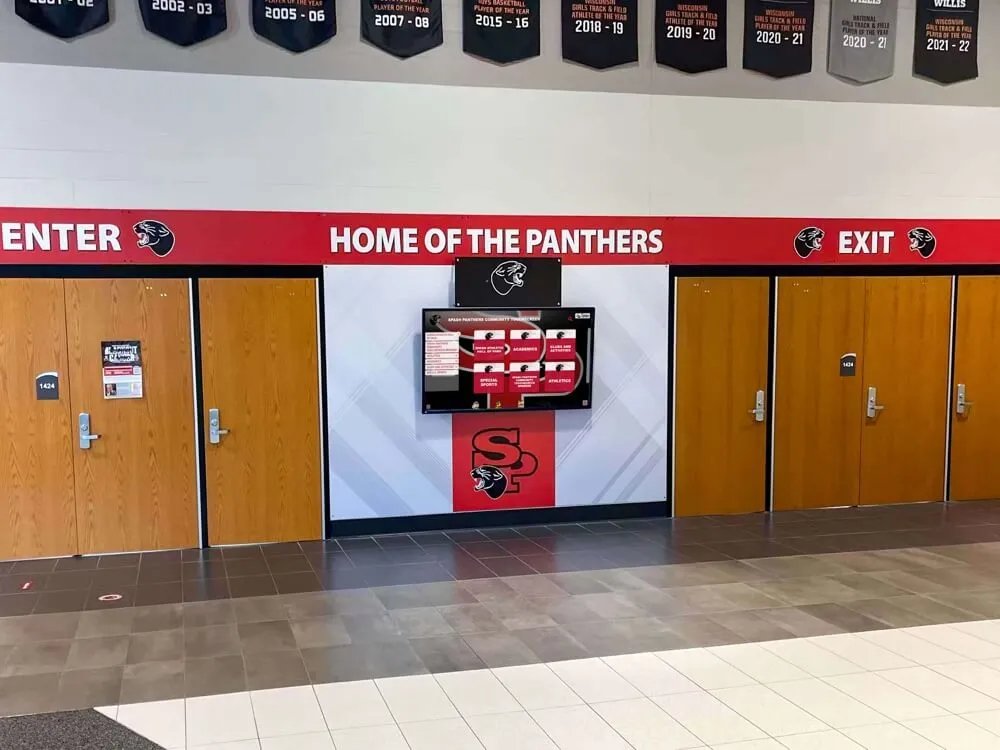
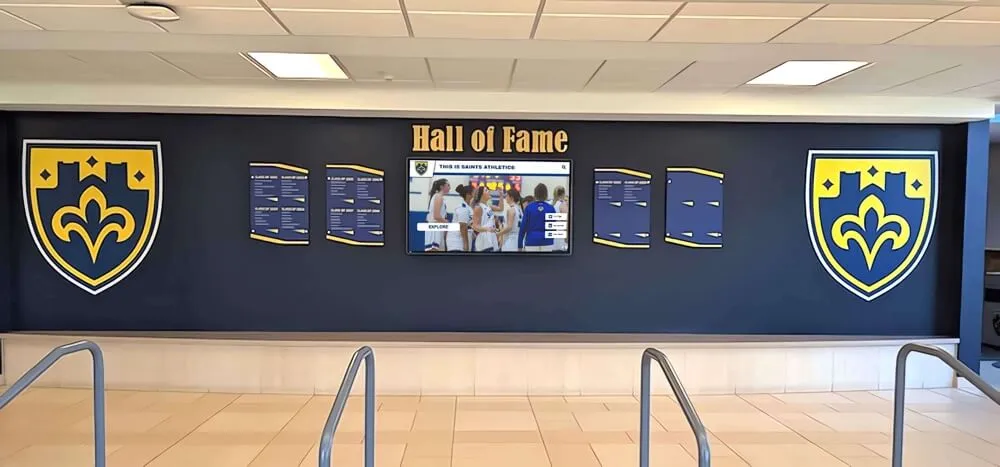
Interactive touch screen digital signage is increasingly common at institutional exhibitions, campus lobbies, and public-facing facilities
What Interactive Touch Screen Digital Signage Is
Interactive touch screen digital signage refers to display systems that accept touch input, process it through software, and respond with relevant content or navigation. The term covers a wide range—from a single 43-inch kiosk in a school hallway to a multi-screen installation spanning an entire athletic wing.
What separates interactive digital signage from passive digital signage is user control. Passive signage plays content on a scheduled loop; visitors observe it. Interactive signage waits for input and then responds—whether that means pulling up a specific donor profile, showing a campus map with walking directions, or displaying a searchable alumni directory.
Common deployment categories include:
- Recognition displays: Searchable halls of fame, donor walls, and academic achievement boards
- Wayfinding kiosks: Building directories and campus navigation tools
- Information kiosks: Event schedules, news feeds, and announcements that visitors can browse
- Lobby engagement displays: School history timelines, program spotlights, and community recognition
For a foundational overview of what digital signage entails outside the interactive context, this overview of digital signage concepts provides useful background on core terminology and deployment models.
How Touch Screen Technology Works
Touch sensing is not a single technology—it is a category that includes several distinct approaches, each with different operating principles, cost profiles, and practical tradeoffs. Knowing which technology a display uses tells you a great deal about its accuracy, durability, and appropriate use cases.
Projected Capacitive (PCAP) Touch
Projected capacitive technology is the same approach used in smartphones and tablets. A fine grid of thin-film conductive electrodes sits beneath the display’s glass surface. When a conductive object—typically a bare finger—comes near the glass, it distorts the local electrical field. The controller chip reads the distortion pattern across all electrode intersections and calculates the touch position with high accuracy.
PCAP supports true multi-touch (typically 10 or more simultaneous contact points), responds to light touch without requiring pressure, and works reliably on high-gloss glass. It does not work reliably with gloved hands unless the gloves are designed for touchscreen use. PCAP panels are generally thinner and more optically clear than alternatives.
For interactive recognition displays and kiosks where precise navigation matters, PCAP is the industry standard.
Infrared (IR) Touch
Infrared touch frames surround the display perimeter with an array of LED transmitters on one axis and receivers on the opposing axis. These create an invisible grid of infrared beams across the screen surface. Any object that interrupts a beam—a finger, a stylus, even a gloved hand—is detected and its position calculated from which beams were blocked.
IR touch works with any pointing object, requires no pressure, and tolerates screen damage better than overlay-based technologies because the touch detection happens at the frame rather than the screen itself. Resolution is generally lower than PCAP, and the bezel frame adds physical depth to the display edge.
IR is commonly used on large-format displays (65 inches and above) where PCAP manufacturing becomes cost-prohibitive. For a more detailed history of how touch sensing has developed across both technologies, this touchscreen history guide traces the evolution from early resistive panels through modern PCAP and IR systems.
Resistive Touch
Resistive panels use two flexible conductive layers separated by tiny spacers. Pressure anywhere on the screen causes the layers to contact, completing a circuit. The controller reads the resistance at the contact point to determine position.
Resistive technology works with any pointing device—gloves, styluses, fingernails—and is inexpensive to manufacture. It has lower optical clarity than PCAP (the layers add haze), is not multi-touch capable in its basic form, and wears out faster under sustained heavy use. It remains common in industrial and point-of-sale contexts but is rarely the right choice for public-facing institutional displays.
Surface Acoustic Wave (SAW)
SAW screens use piezoelectric transducers to send ultrasonic waves across the display surface in both axes. When a finger touches the surface, it absorbs some of the wave energy. The controller detects this absorption and calculates position.
SAW provides excellent image clarity because nothing additional sits between the viewer and the glass. It supports multi-touch on some implementations and responds to light pressure. The significant limitation: liquids or debris on the screen surface can trigger false touches, making SAW less suitable for high-traffic environments where screens may be frequently handled.

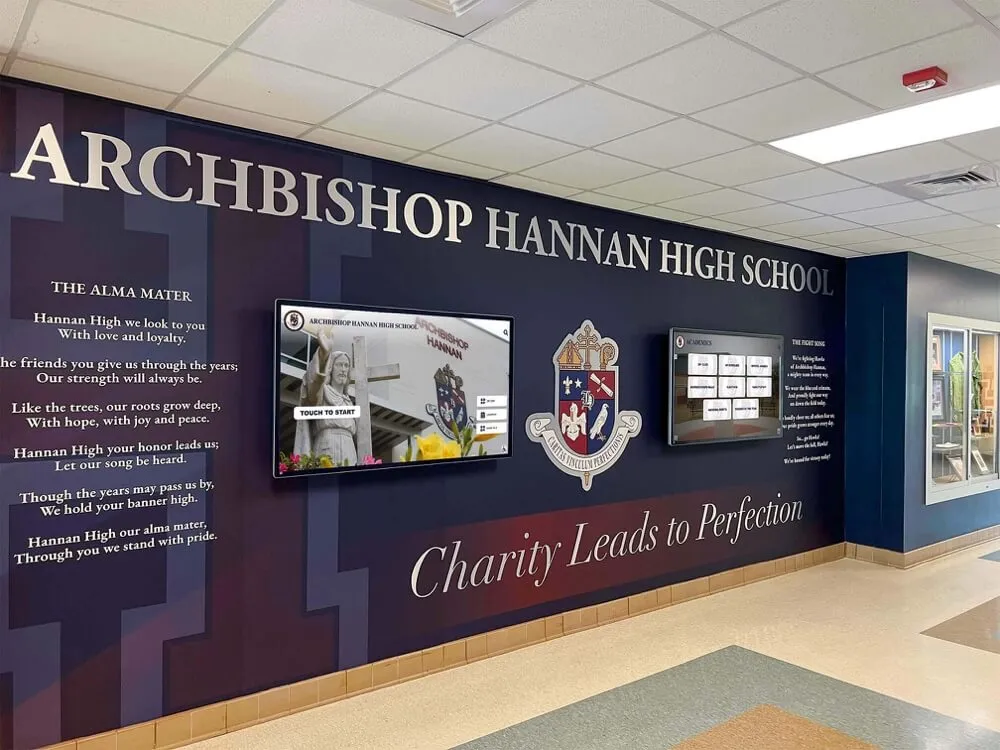
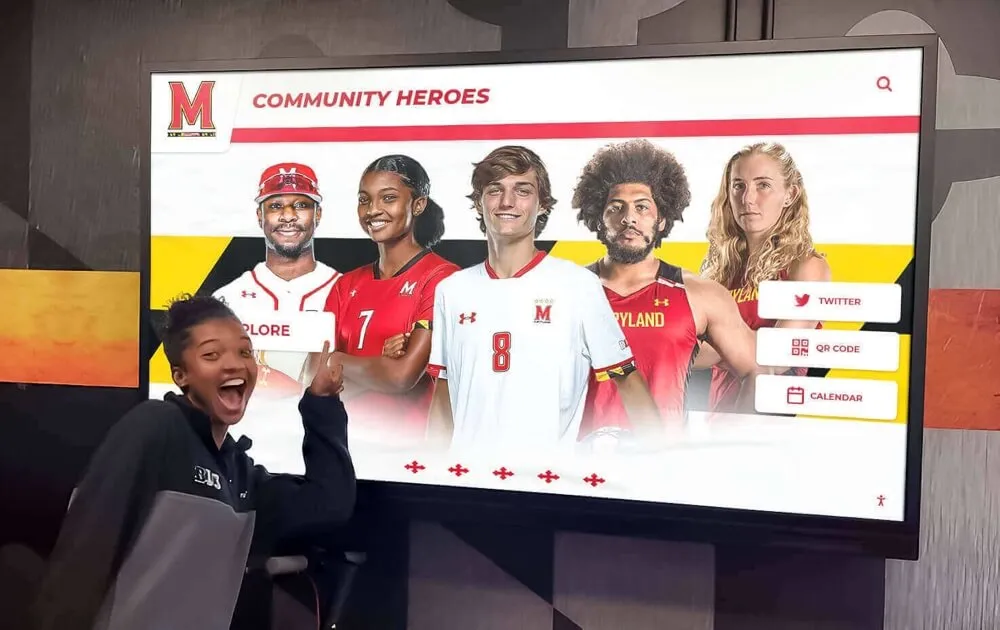
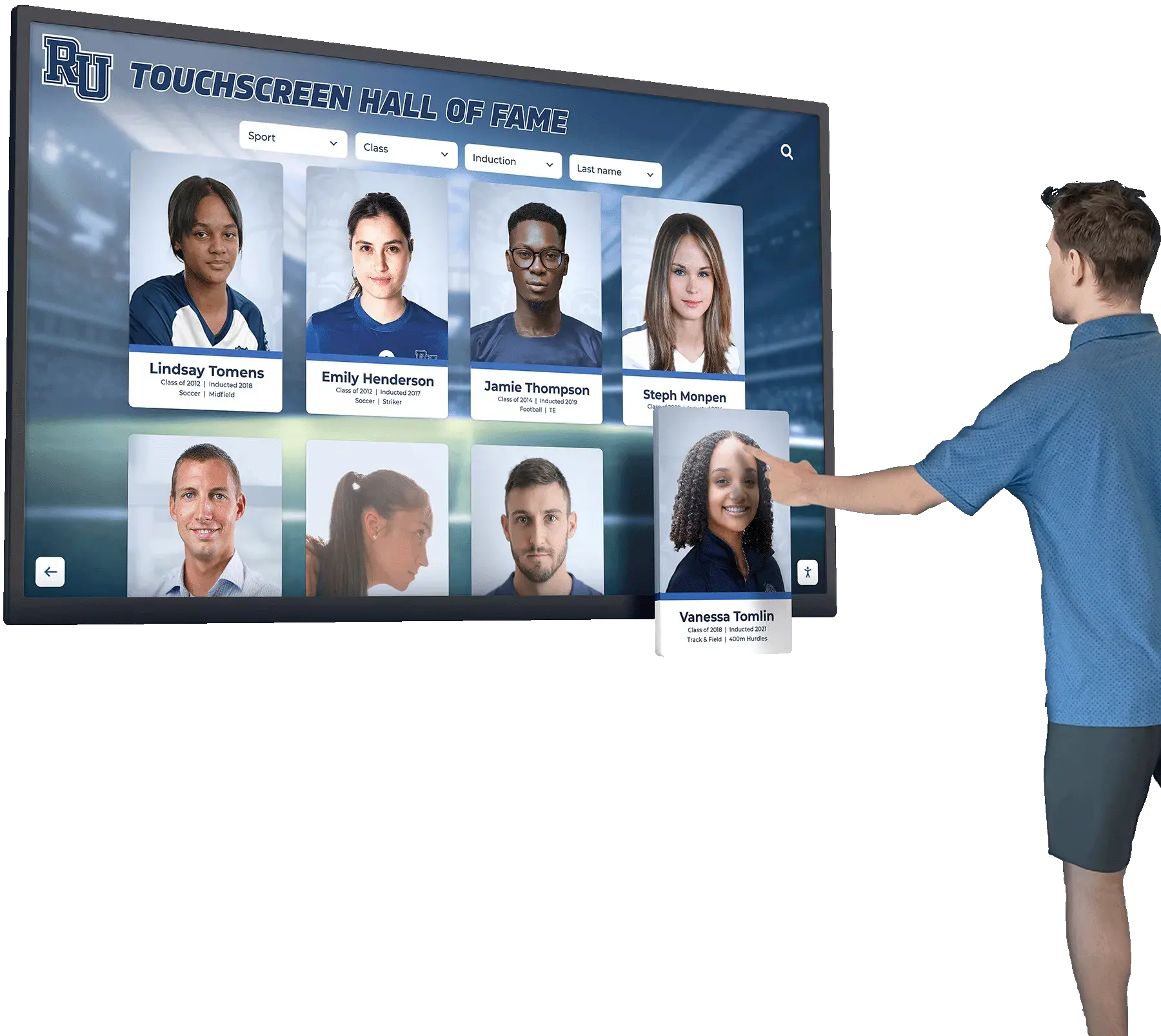
Projected capacitive panels deliver the precise, responsive touch recognition visitors expect from modern interactive displays
Core Components You Need for an Interactive Touch Screen System
A complete interactive touch screen digital signage system has five layers: the display panel, touch input hardware, computing hardware, content management software, and network infrastructure. Gaps in any layer create problems—a great display with underpowered computing runs sluggishly, and capable hardware managed with inadequate software limits what staff can actually do with it.
1. Commercial-Grade Display Panel
The display panel is the visible face of the system. Consumer televisions are not appropriate for public institutional signage—they are designed for 4–8 hours of daily home use, not continuous 12–18 hour institutional deployment.
Commercial panels differ from consumer televisions in several practical ways:
| Specification | Consumer TV | Commercial Display |
|---|---|---|
| Daily operating rating | 4–8 hours | 16–24 hours |
| Brightness (typical) | 200–350 nits | 400–700 nits |
| Expected lifespan | 3–5 years | 7–10 years |
| Warranty | 1 year (home use) | 3+ years (commercial use) |
| VESA mounting | Sometimes | Standard |
| Anti-glare treatment | Uncommon | Common |
For lobbies and hallways with mixed or overhead lighting, displays rated at 500+ nits maintain legibility throughout the day. Panel size should match the viewing distance: a 43-inch screen works at 4–8 feet; 55–65-inch panels suit 8–14 foot distances; 75-inch and larger are appropriate for open atrium or gymnasium installations with 15+ foot sightlines.
2. Touch Overlay or Built-in Touch Panel
Some displays arrive as all-in-one touchscreen units (touch panel factory-bonded to the display glass). Others are standard display panels with touch overlays applied as separate hardware frames or film overlays.
All-in-one units are generally more optically clean and structurally durable. Add-on IR frames can be retrofitted to existing displays at lower cost, which makes them useful for extending the life of existing installations. For new deployments, factory-built PCAP or IR units from commercial display manufacturers are generally the better starting point.
3. Media Player or Embedded Computing
The media player is the computer that runs the signage software, manages the content library, handles network communication, and drives the display output. This component is often underspecified, which leads to sluggish performance on content-heavy systems.
Three common configurations:
- System-on-chip (SoC) built into the display: Some commercial displays include an embedded SoC running Android or a proprietary OS. This simplifies cabling and reduces hardware count but offers limited upgrade paths.
- External media player box: A dedicated mini-PC or media appliance connected to the display via HDMI or DisplayPort. Easier to service, upgrade, or replace independently of the display.
- PC-based solution: A full Windows or Linux computer driving the display. More power than most signage applications require, but appropriate for software that demands it.
For recognition-focused interactive displays—those running searchable databases with photos, videos, and profiles—an external media player with adequate processing and storage (typically 4–8 GB RAM, 64 GB+ storage, solid-state drive) handles content reliably.
4. Content Management Software (CMS)
The CMS is the software layer that controls what appears on the screen and enables staff to update content without technical assistance. For interactive signage, this means more than a scheduling tool—it includes the navigation framework, search capability, donor or recognition database, and the design templates that determine how information looks to visitors.
Key CMS capabilities to evaluate:
- Remote access: Staff should be able to add new donors, update recognition records, or change announcements from any browser without on-site hardware access
- Search and filtering: Visitors should be able to search by name, filter by category, and browse records without memorizing a navigation structure
- Database capacity: Ensure there is no per-record cap that limits how many donors, athletes, or staff members can be recognized
- Template system: Consistent visual design across all records, with the ability to upload photos and videos per profile
- Scheduled publishing: Content updates that go live at a specified date and time without requiring manual intervention
- Analytics: Usage tracking showing which records visitors access, how long sessions last, and what search terms are most common
Evaluating touch screen kiosk software for interactive displays involves comparing feature depth, ease of use for non-technical administrators, and the vendor’s track record supporting institutional clients.
5. Network Infrastructure
Interactive signage requires a reliable network connection for three purposes: receiving content updates from the cloud-based CMS, sending analytics data back to administrators, and (in some configurations) enabling real-time data pulls from external databases.
Bandwidth requirements for standard interactive signage are modest—typically well below what a video streaming session demands—but the connection must be stable. An interrupted connection can prevent scheduled content updates from reaching the display and may interrupt real-time database synchronization.
Most institutional deployments use existing WiFi or run a dedicated ethernet drop to each display location. Ethernet is preferable for reliability, particularly in buildings with congested wireless environments. Firewall and network security configurations should allow outbound HTTPS traffic on standard ports for the CMS platform in use.
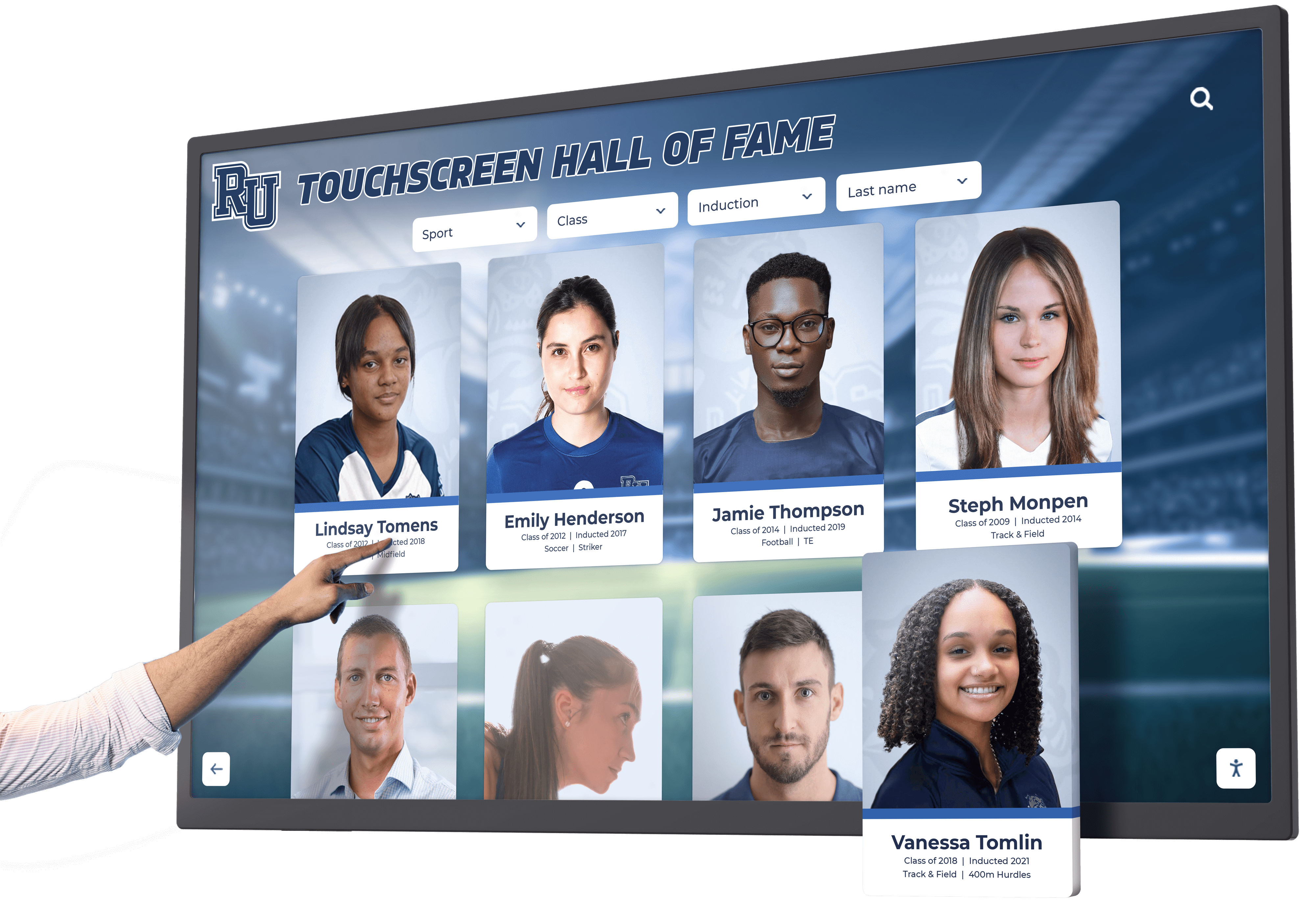
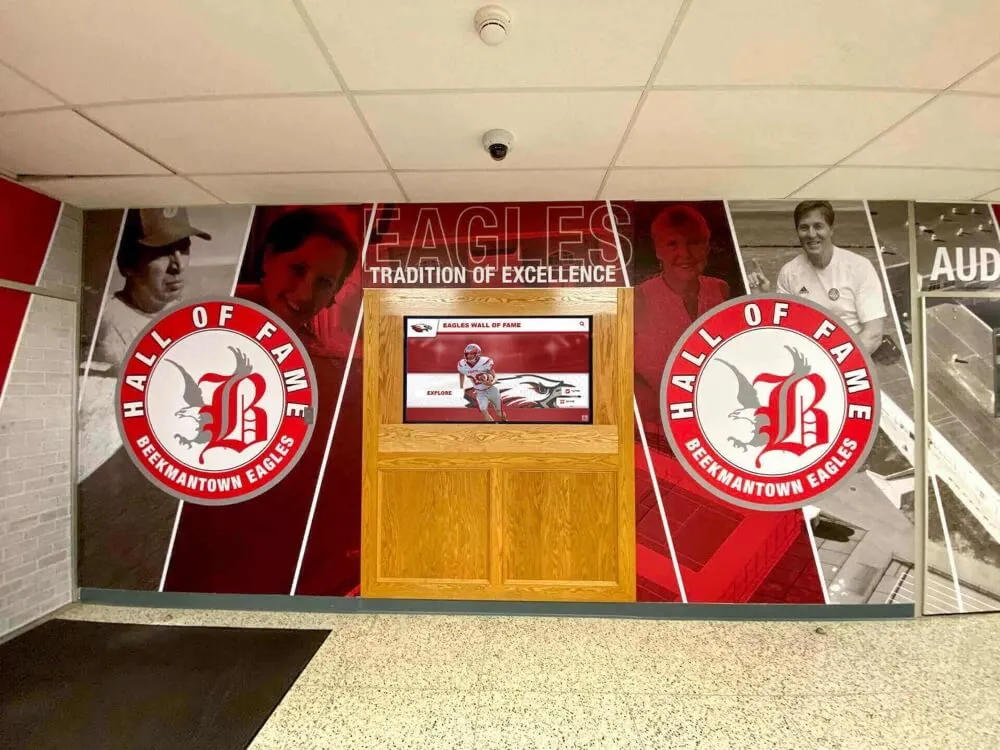
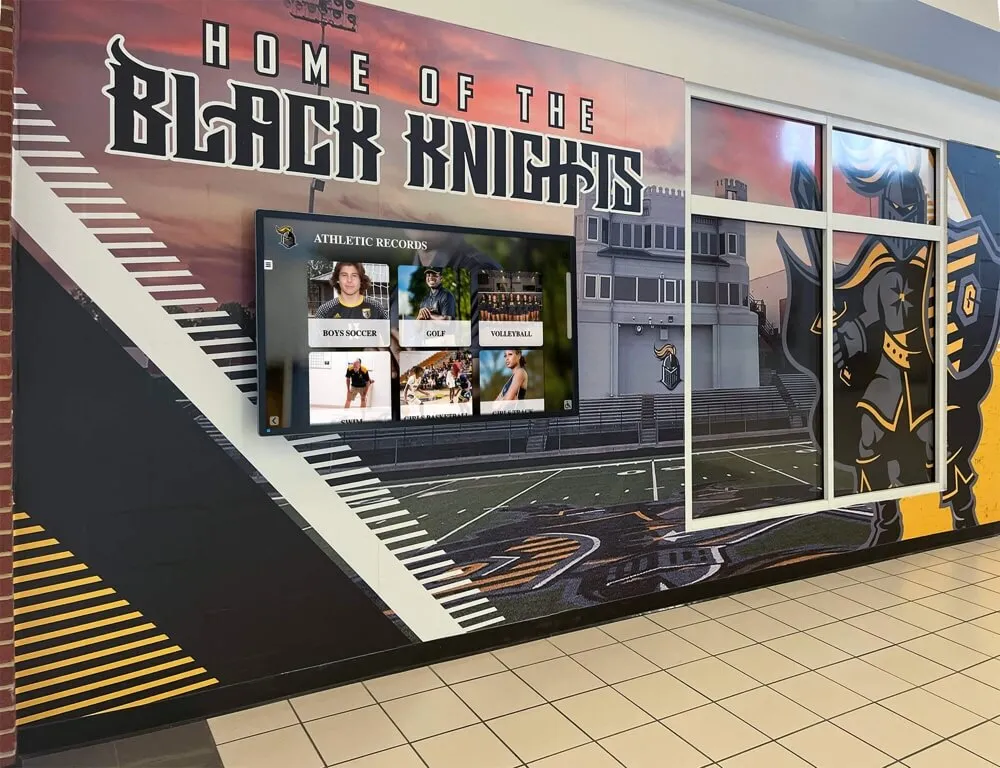
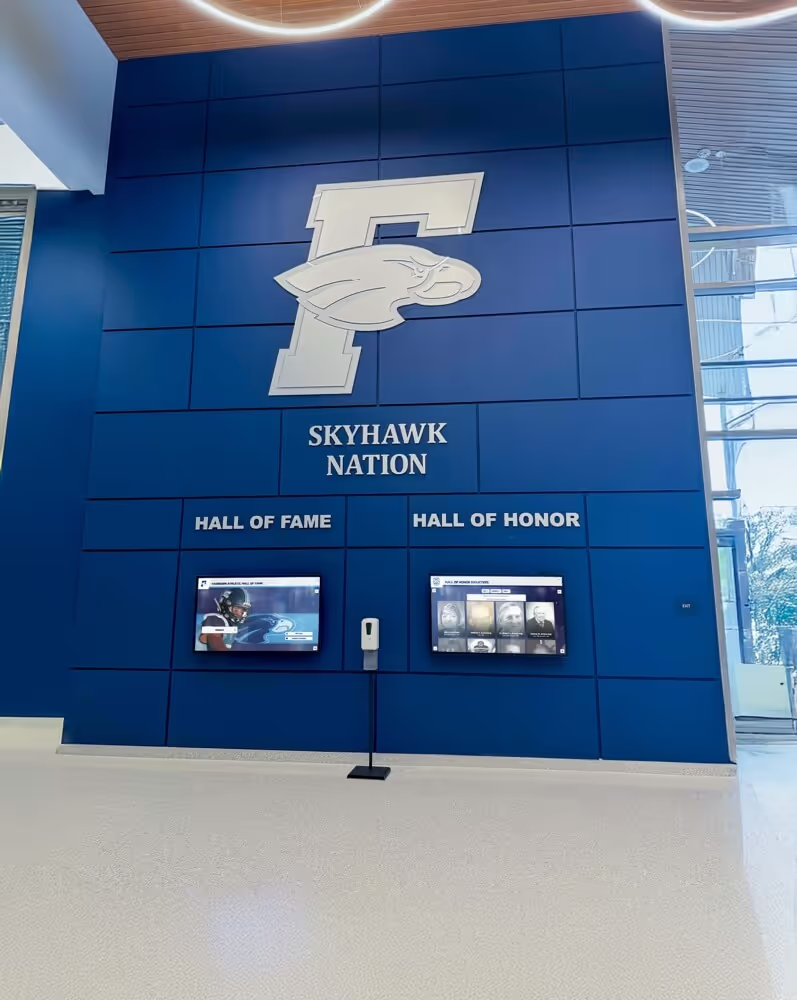
Large-format displays in stadiums and athletic facilities typically use infrared touch technology for its reliability at scale
Quick Reference: Component Checklist
Before purchasing, confirm your vendor has addressed each of these:
- Display panel: Commercial-grade, appropriate nit rating for ambient light, right size for viewing distance
- Touch technology: PCAP for precision kiosks; IR acceptable for large-format or gloved-hand environments
- Media player: External unit with SSD, adequate RAM, OS that the CMS supports
- CMS: Remote access, searchable database, no per-record caps, scheduled publishing
- Network: Stable connection confirmed; firewall rules approved by IT
- Mounting: Structural support confirmed; cable management planned
- Power: Dedicated circuit preferred; surge protection required
Installation Requirements and Physical Setup
Getting hardware on-site is only part of installation. The physical setup decisions—mounting height, cable routing, power supply, and structural support—affect both day-one appearance and long-term reliability.
Mounting Options
Three mounting configurations cover most institutional scenarios:
- Wall mount: The most common approach for corridor and lobby installations. Requires confirming wall structure (drywall alone does not support commercial display weight; blocking or direct stud mounting is necessary). A 55-inch commercial display typically weighs 45–65 pounds; 75-inch units range from 90–130 pounds.
- Floor stand or kiosk enclosure: Used where wall mounting is not feasible or where a freestanding kiosk serves the use case better. Kiosk enclosures typically integrate cable management and can include printed graphics wrapping the base.
- Millwork integration: Displays built into custom cabinetry or architectural millwork create premium recognition installations. This approach involves a contractor or furniture fabricator in addition to the display installer and typically extends the project timeline.
Mounting Height and Ergonomics
The center of a touchscreen display should sit at a height accessible to standing adults—typically 54–62 inches from the floor to the screen center. For ADA compliance and wheelchair accessibility, the relevant touchable area must be reachable from a seated position, which affects both height and projection from the wall (see Accessibility section below).
Do not place touch surfaces where they will be at an angle that requires reaching above shoulder height or bending awkwardly—both reduce usability and increase the risk of discomfort for frequent users.
Power and Electrical
Commercial displays draw 150–400 watts continuously depending on size and brightness setting. A dedicated 20-amp circuit for each display location is the recommended standard, particularly for large-format units. Using shared circuits risks voltage fluctuations from other equipment that can cause display anomalies or premature component wear.
Surge protection is not optional—install a quality surge protector with appropriate joule rating (1,000+ joules) on every display. Uninterruptible power supplies (UPS) provide an additional layer of protection for mission-critical installations and allow graceful shutdown during outages rather than abrupt power loss.
Cable Management
Exposed cables undermine the professional appearance of institutional installations. Plan cable routing before drilling or mounting: where power and data conduits will run, whether in-wall routing is feasible, and whether surface-mounted conduit is the fallback. For floor-stand installations, enclosures should route cables internally to the base.
Typical installation time for a single-display wall-mounted unit with standard electrical and network access is 4–6 hours. Complex millwork integrations or multi-display installations run longer.
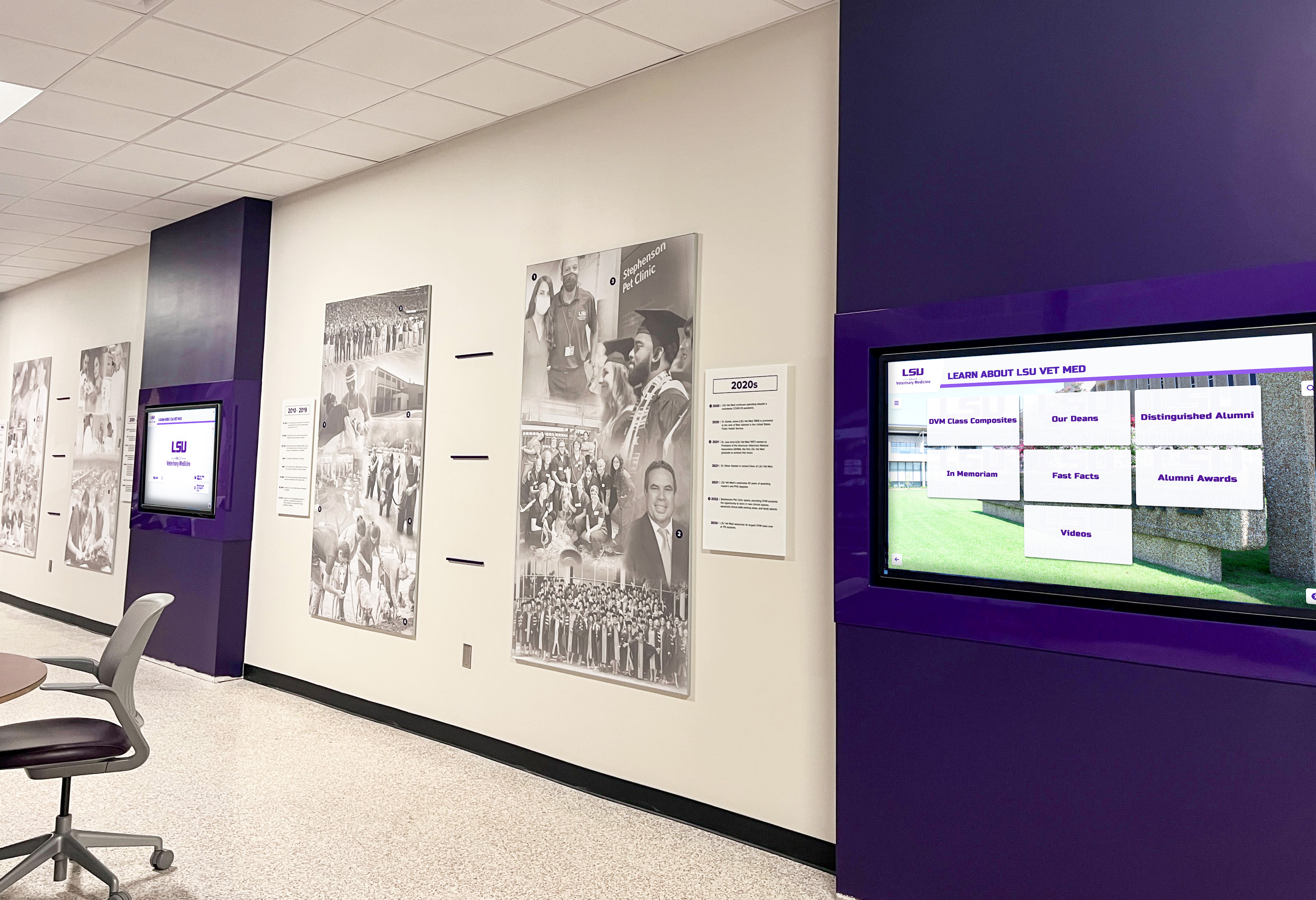
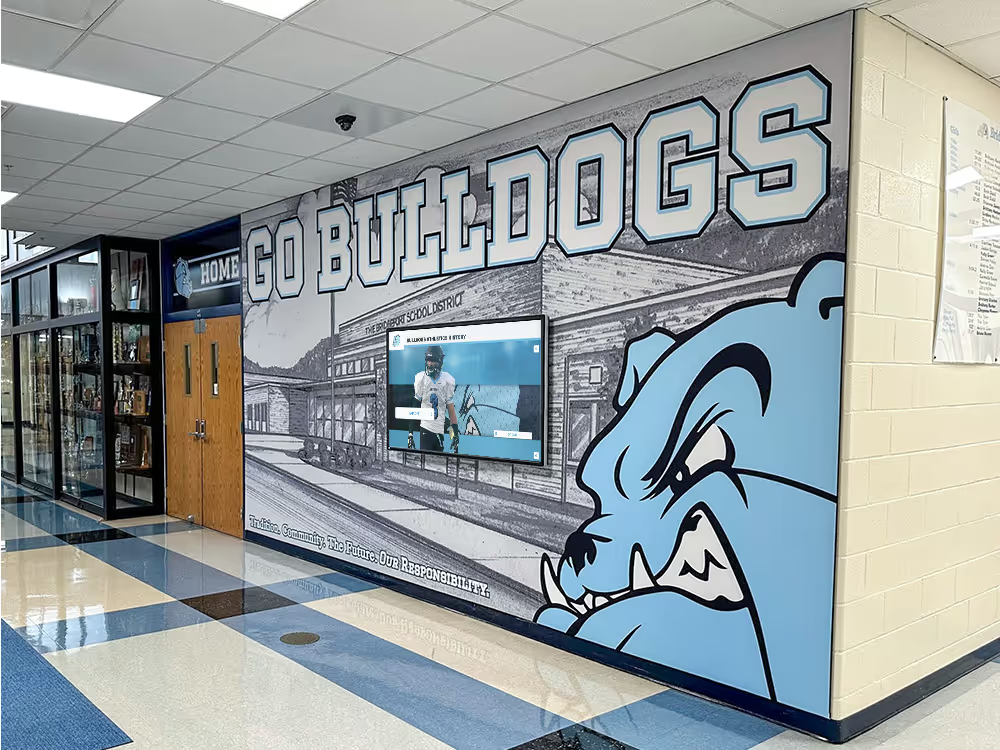
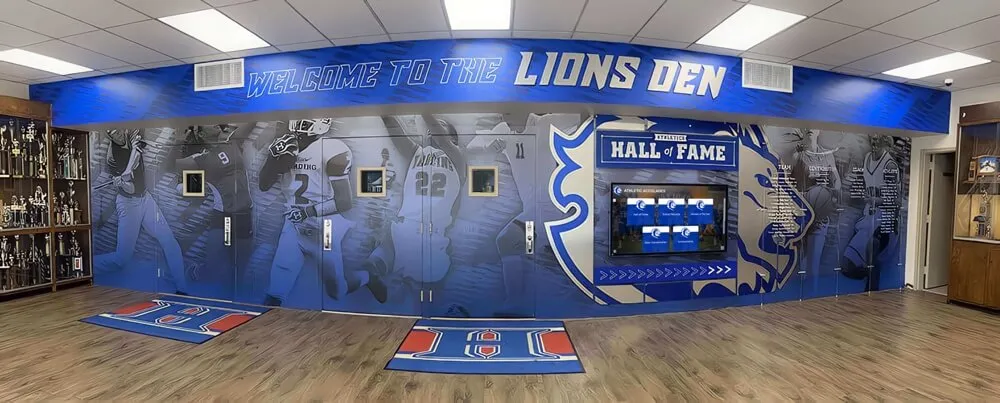
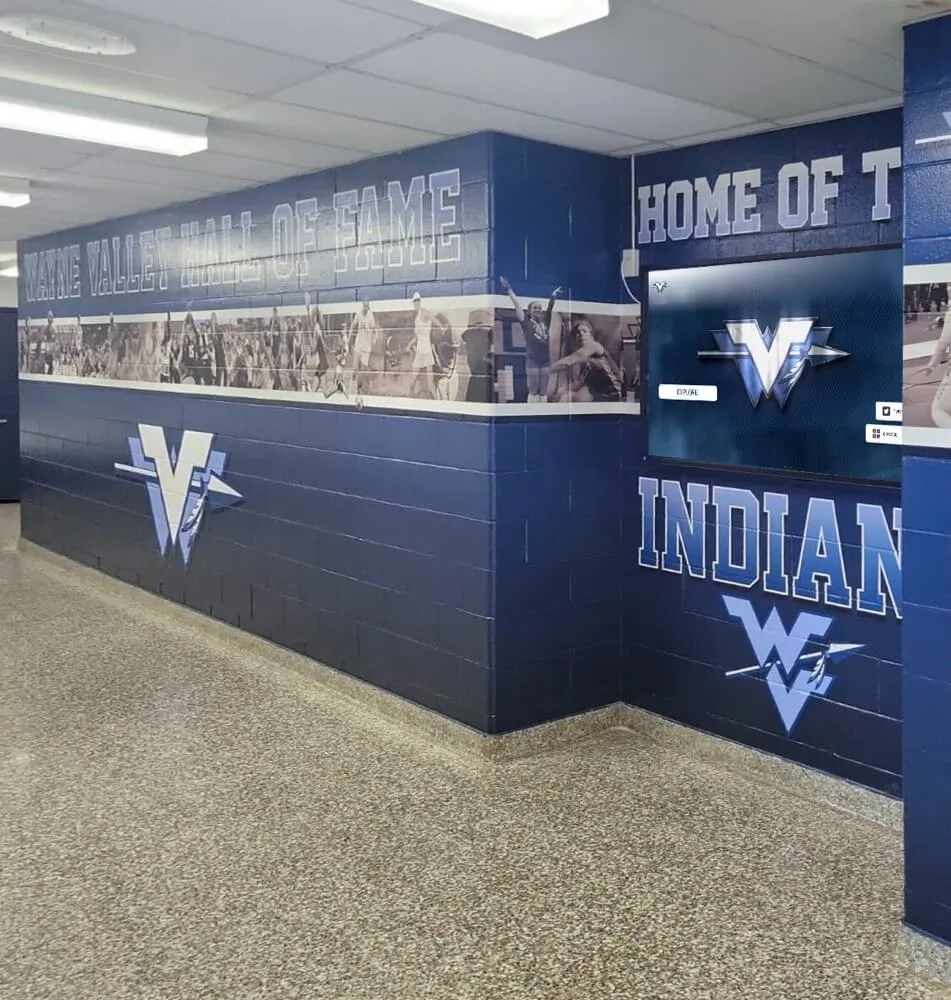
Multi-screen corridor installations require careful pre-planning for power routing, mounting support, and cable management
Common Use Cases in Schools and Institutional Settings
Interactive touch screen digital signage addresses a broad range of institutional communication needs. Understanding the specific use case shapes hardware and software decisions significantly.
Athletic and Academic Recognition Displays
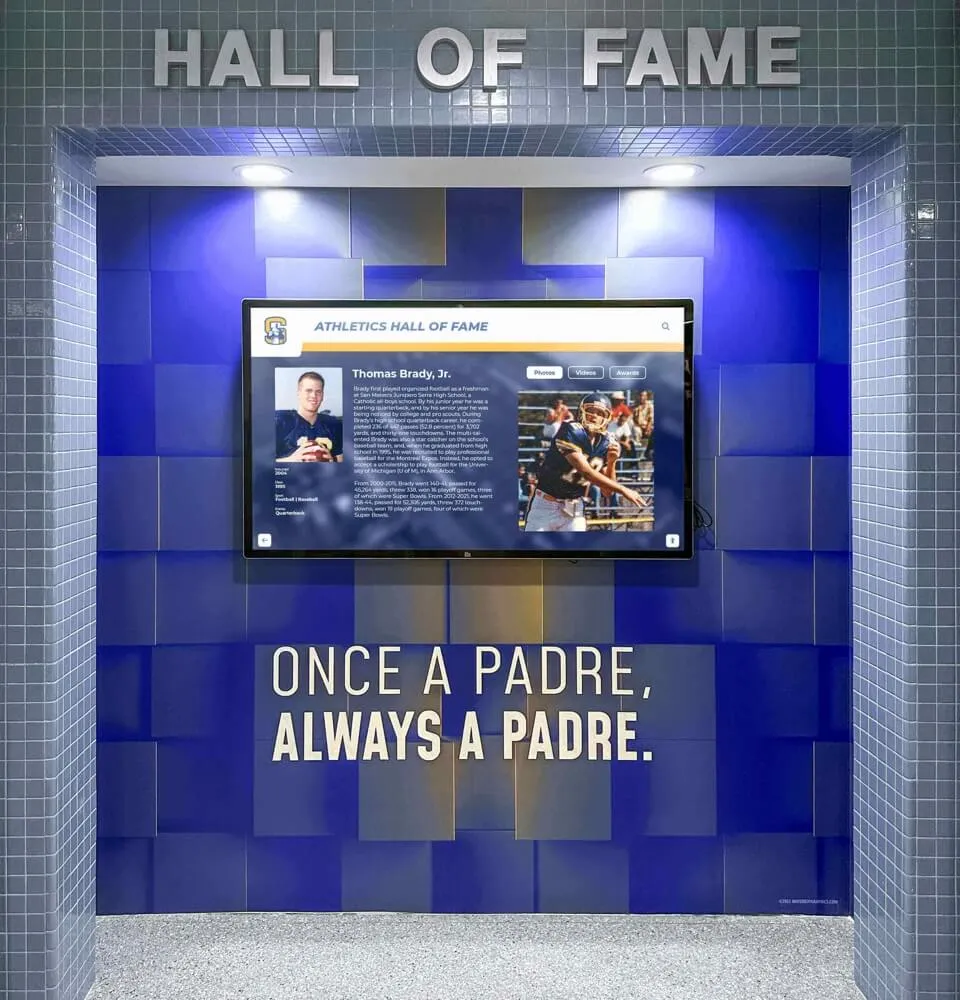
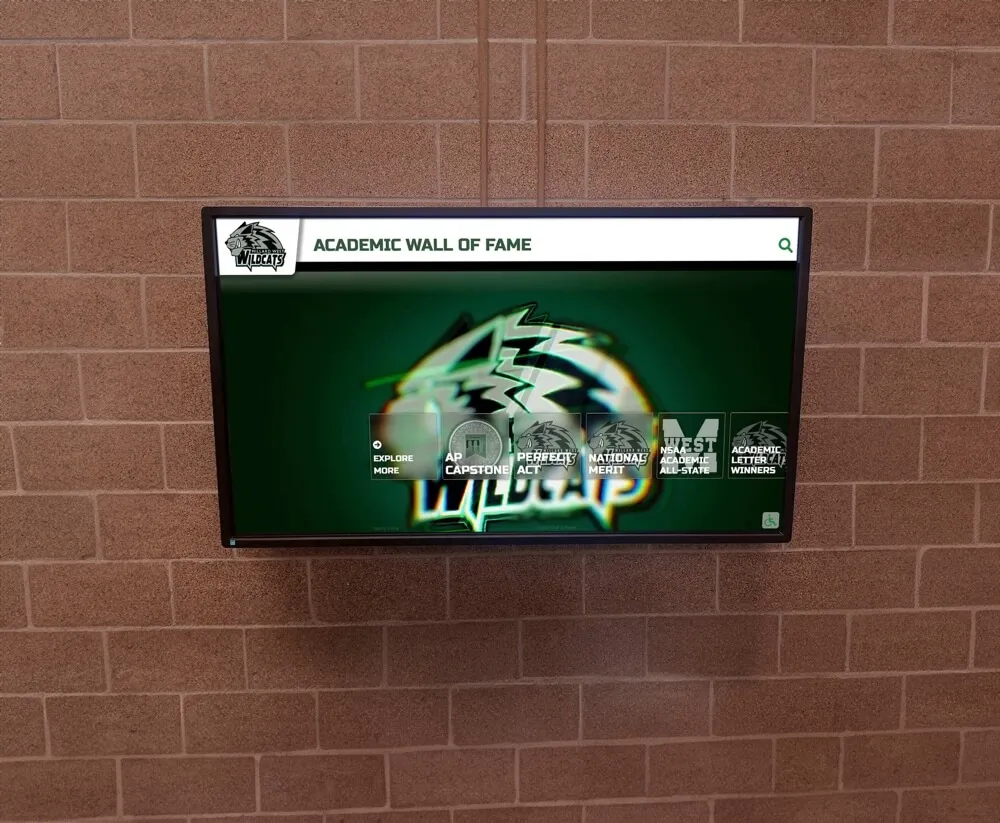
Schools and universities use interactive touchscreens to create searchable halls of fame, academic honor walls, and alumni recognition displays. Visitors can search by name, browse by sport or graduation year, and view detailed profiles including photos and career highlights. This replaces static plaques and trophy cases with living archives that can be updated as new honorees are inducted.
Interactive touch screen displays in schools have become a particularly effective storytelling medium, allowing institutions to combine photos, athletic records, and personal narratives in a format that engages students, families, and alumni far more than a plaque wall can.
Donor Recognition Walls
Nonprofits, hospitals, and educational foundations use interactive donor walls to recognize supporters at giving levels, display cumulative giving histories, and tell the stories behind major gifts. A touchscreen donor wall accommodates unlimited donors without physical space constraints—contrast this with traditional bronze plaques that exhaust wall space as campaigns grow.
For a detailed look at how interactive touch screen signage applies in school gym lobbies and trophy display contexts, the combination of athletic recognition and donor appreciation in shared lobby spaces is particularly common among schools that have completed capital campaigns.
Announcements and Communication Feeds
Many schools deploy interactive displays in hallways and common areas as real-time communication tools. Visitors and students can browse upcoming event schedules, read announcements filtered by category, and access information relevant to specific programs or departments. Interactive announcements on school displays move beyond passive digital bulletin boards by letting users self-select relevant content rather than waiting for a scheduled rotation.
Library and Resource Information Kiosks
Libraries use touchscreen kiosks for catalog access, event schedules, directional information, and resource guides. Library touchscreen displays serve as self-service information hubs that reduce staff interruptions while giving patrons direct access to the resources they need.
Building Directories and Wayfinding
Multi-building campuses, hospitals, and corporate facilities use interactive touchscreens as building directories and wayfinding systems. Visitors search for departments, staff names, or services and receive directions, floor numbers, and room details. These systems are particularly valuable in large or recently renovated facilities where printed directories quickly become outdated.
For a broader look at how touchscreen kiosk solutions serve schools and organizations, the common thread across all these use cases is the shift from one-way broadcasting to two-way engagement.
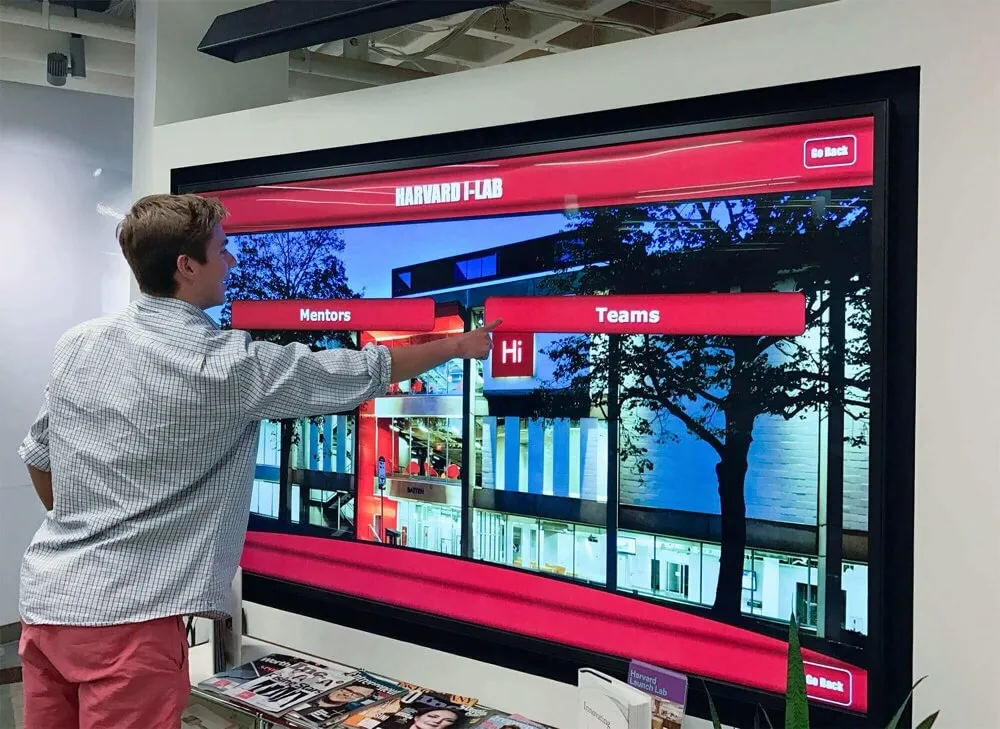
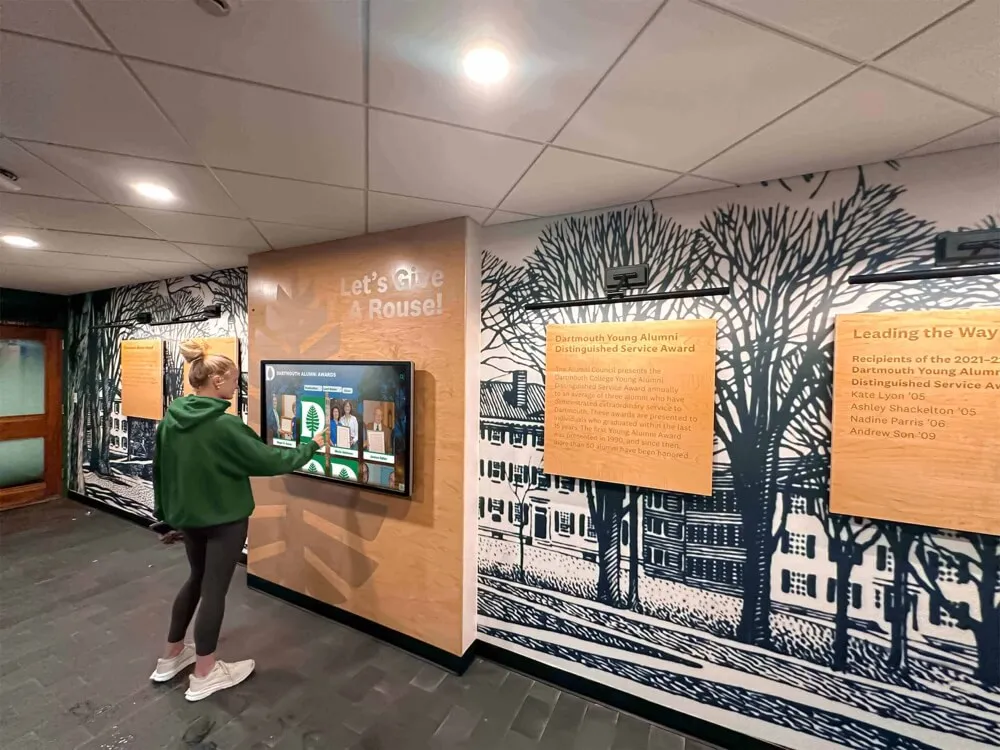
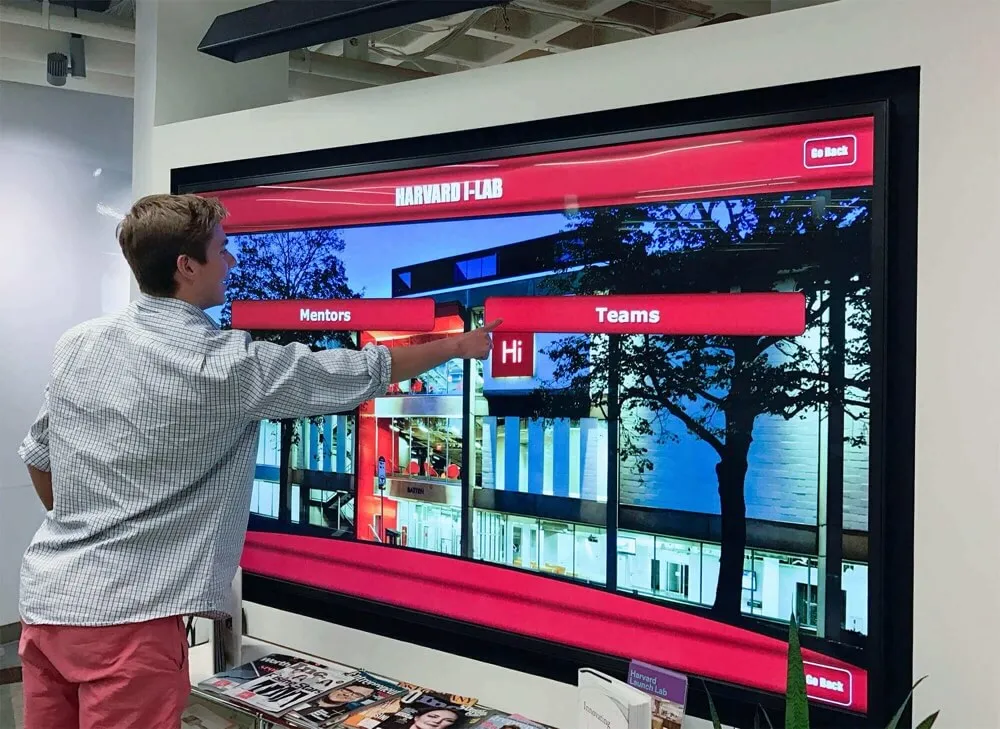
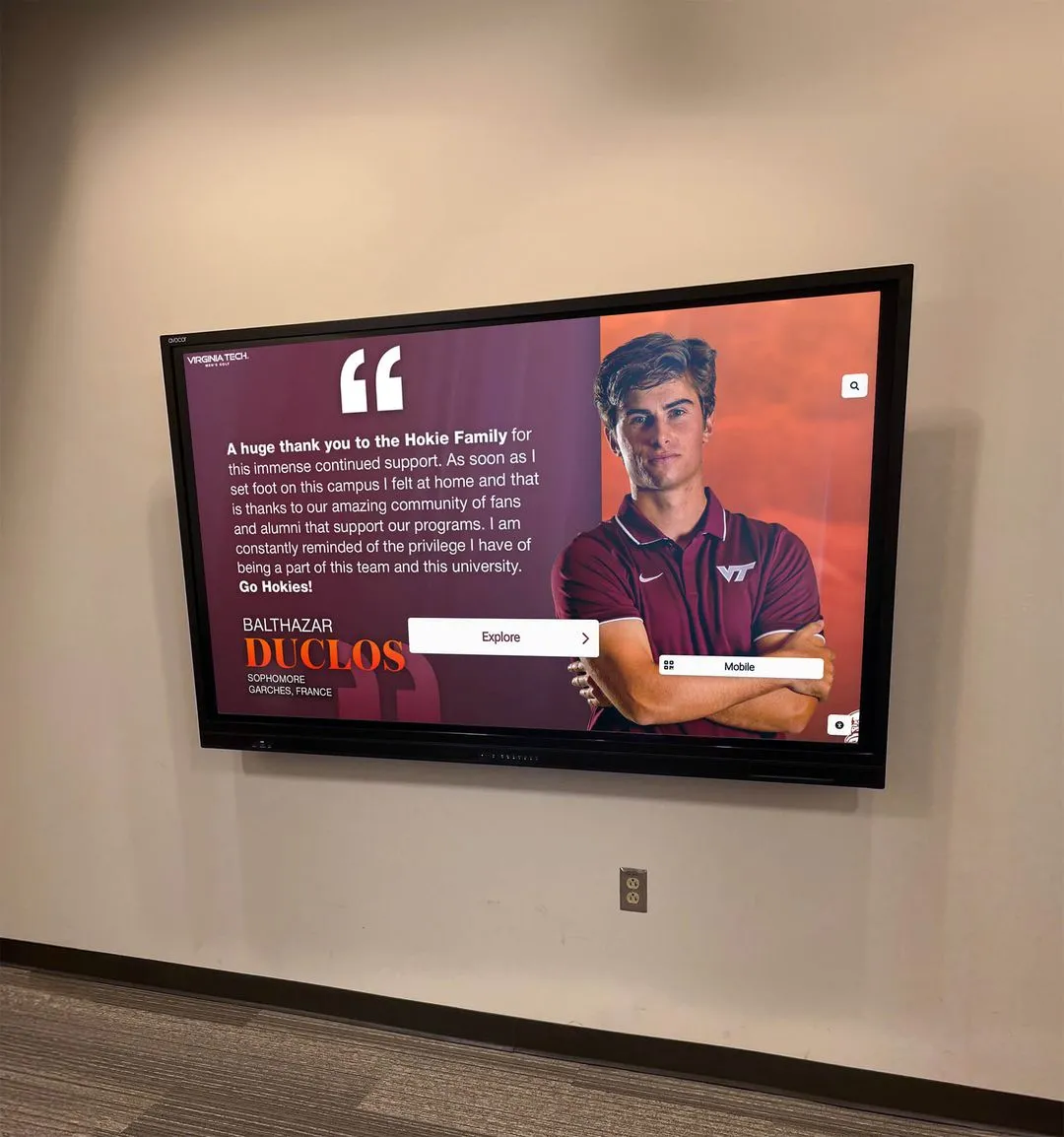
University innovation hubs and institutional lobbies use interactive touchscreens for directory navigation, mentor lookup, and program information
Content Strategy for Interactive Displays
Hardware and software create the platform. Content determines whether visitors engage with it. Interactive displays require a different content approach than passive digital signage.
Designing for Self-Directed Navigation
Passive signage delivers a message in sequence. Interactive signage must be navigable without instruction—a visitor who has never used the system should understand within a few seconds how to find what they want.
This requires:
- Clear home screen hierarchy: Organize the main navigation into 4–6 categories at most. Too many options create paralysis; too few prevent visitors from finding specific content.
- Visible search functionality: Place a search field prominently on the home screen for systems with large databases. Name search is often the first instinct for visitors looking for a specific person.
- Consistent back navigation: Every screen should have a visible, consistent way to return to the previous level or the home screen.
- Short text on primary screens: Primary browsing screens should use images and brief labels. Detailed text belongs on individual profile pages that visitors actively navigate to.
Photo and Media Quality
Interactive recognition displays depend heavily on photos. Blurry, low-resolution, or poorly cropped images undermine the professionalism of the entire installation. Before launching, establish minimum photo standards:
- Minimum 400×400 pixels for profile thumbnails; 800×800 or larger preferred
- Consistent crop style (head-and-shoulders, or consistent sport action shots)
- Consistent background where possible (white or school colors)
- Correct color balance and exposure
Video content on interactive displays should be kept short—60–90 seconds for donor testimonials or program spotlights. Long videos are rarely watched to completion on public kiosks.
Content Governance and Update Cadence
One of the most common failures of interactive signage is content staleness. A display that still shows a “2024 Campaign” message in 2026 signals institutional neglect to every visitor.
Establish a named content owner with clear responsibilities and a documented update schedule:
- Event-triggered updates: New donors recognized within 5 business days of gift confirmation; new inductees added ahead of ceremony dates
- Scheduled quarterly reviews: Check all existing content for accuracy; archive or update outdated materials
- Annual audit: Review all profiles for photo quality, biographical accuracy, and category placement
Digital signage programs for schools consistently cite content governance as the factor that separates displays that remain engaging years after installation from those that are quietly ignored after the first few months.
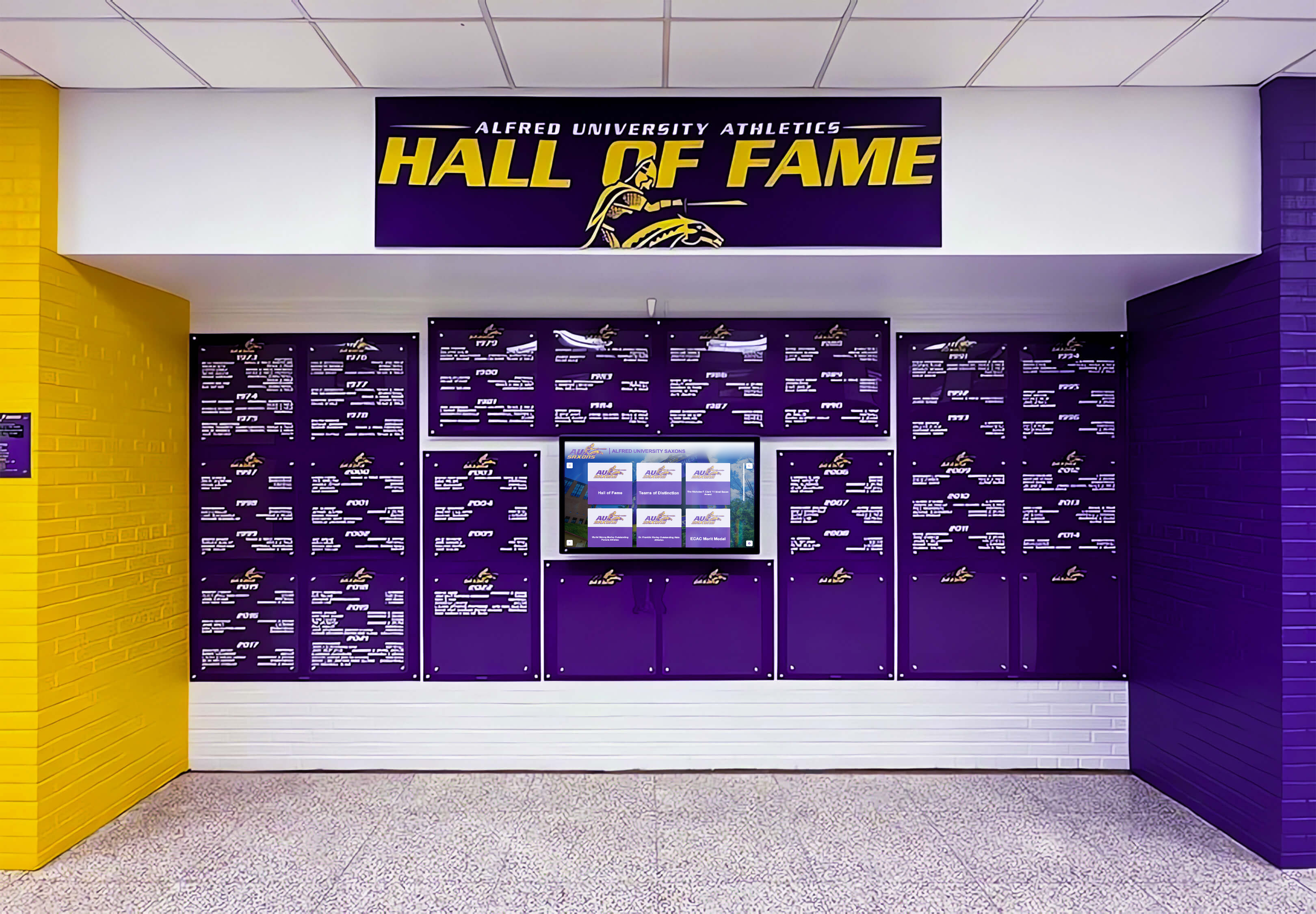
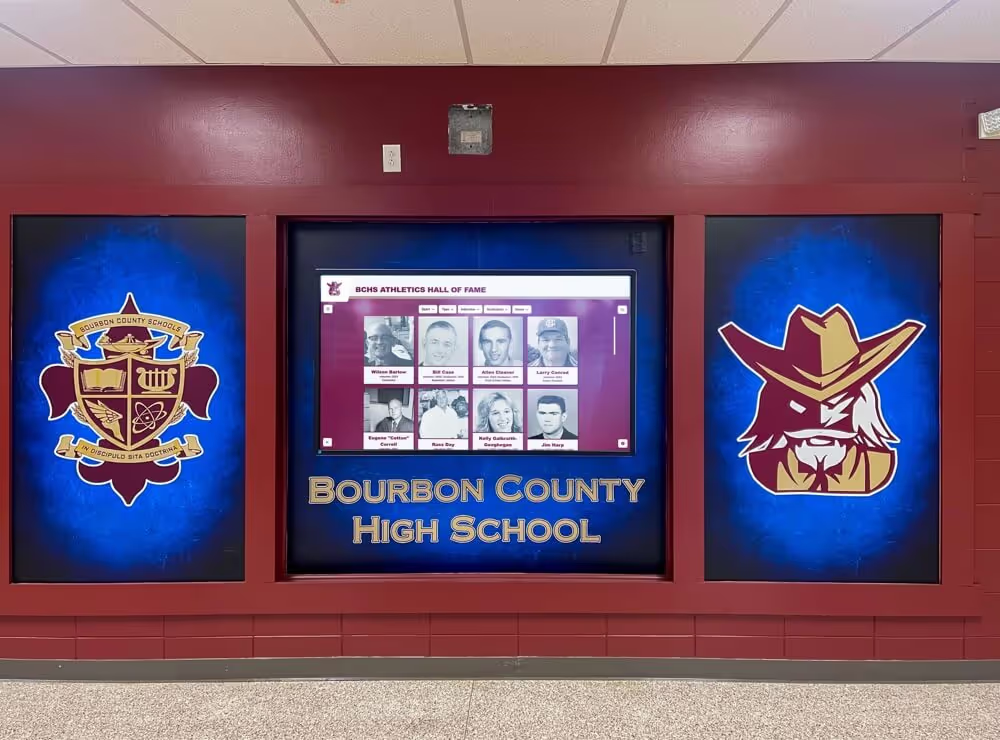
Institutional color palettes and consistent design standards in the CMS maintain brand coherence across all recognition content
ADA Compliance and Accessibility
Interactive touch screen digital signage installed in public institutional settings must meet accessibility requirements. In the United States, this means compliance with ADA Standards for Accessible Design and, for software interfaces, conformance with WCAG 2.1 AA guidelines.
Physical Accessibility Requirements
For displays mounted on walls, the ADA requires that operable parts (the touchscreen surface) be reachable from a clear floor space alongside the wall. Key requirements:
- Side reach: no higher than 48 inches from the floor
- Forward reach over an obstruction: no higher than 44 inches
- Touchscreen surfaces must not require more than 5 pounds of operating force
- Display must not protrude more than 4 inches from the wall at a height of 27–80 inches if the projection creates a hazard for pedestrians
Floor-stand kiosks require a 30×48-inch clear floor space adjacent to the operable touch surface for wheelchair access.
Software Accessibility Requirements
WCAG 2.1 AA compliance for interactive signage software includes:
- Color contrast: Text against backgrounds must meet a minimum 4.5:1 contrast ratio (3:1 for large text)
- Text resizing: Text must remain readable when scaled up; content should not overlap or become inaccessible when display text size is increased
- Alternative text: All images must have descriptive alt text readable by assistive technologies
- Keyboard navigation: The interface must be operable without requiring touch, using hardware keyboards or switch controls
- Focus indicators: Visible keyboard focus indicators must be present on all interactive elements
- Captions: Video content must include accurate closed captions
Rocket Alumni Solutions builds WCAG 2.1 AA compliance into its recognition display platform. Organizations that have received grants with accessibility requirements or that serve populations where accessibility is a stated priority should request compliance documentation from any vendor under consideration.
Practical Implementation
Some accessibility requirements are best addressed at the procurement stage—once hardware is installed in a permanent mount at a non-compliant height, correction is expensive. Review ADA height requirements with your installer before any mounting brackets are drilled.
For software compliance, request a VPAT (Voluntary Product Accessibility Template) from software vendors. A credible vendor will have this document available without prompting.
Cost Breakdown and What to Budget
Interactive touch screen digital signage cost varies widely by display size, touch technology, software features, and installation complexity. The ranges below reflect typical institutional deployments—not consumer-grade or industrial extremes.
Hardware Costs
| Display Size | Commercial Touch Panel | IR Overlay (add-on) |
|---|---|---|
| 43 inches | $1,800–$3,200 | $400–$700 |
| 55 inches | $2,800–$4,500 | $500–$800 |
| 65 inches | $4,000–$7,000 | $700–$1,100 |
| 75 inches | $6,500–$10,000 | $900–$1,400 |
| 86 inches | $9,000–$14,000 | $1,100–$1,800 |
Media players add $300–$800 depending on processing specifications. Mounting hardware, power conditioning, and professional installation typically add $1,500–$4,000 per display for standard wall-mount configurations.
Software Costs
Signage CMS platforms almost universally use subscription pricing. Annual software costs for purpose-built recognition or interactive signage platforms commonly range from $1,200 to $5,000 per year depending on feature tier, number of records supported, and included support levels.
Generic digital signage platforms (those not purpose-built for recognition or interactive content) may cost less in licensing but require additional configuration work and may lack the searchable database and profile management features institutional recognition applications need.
Content Development Costs
Initial content development—collecting donor or honoree photos, writing biographical content, designing templates—is often the most time-intensive phase of deployment. Organizations with centralized archives and an existing photo library can develop initial content internally. Organizations starting from scratch typically spend $3,000–$10,000 in staff time or contractor fees to build a launch-ready content library.
Total First-Year Investment
For a single-screen interactive recognition display in a school or nonprofit setting:
- 55-inch all-in-one touchscreen commercial display: $3,500–$5,500
- Media player: $400–$700
- Professional installation (mount, power, network, configuration): $2,000–$3,500
- CMS annual subscription: $1,500–$3,500
- Initial content development: $2,000–$6,000
- Total first-year range: $9,400–$19,200
Multi-display installations benefit from economies of scale on both hardware and installation. Organizations replacing physical plaque walls often find the digital equivalent cost-competitive within 3–5 years when accounting for eliminated per-plaque engraving and installation costs for each new honoree.
How to Choose the Right Interactive Signage System
The market includes purpose-built recognition platforms, general digital signage systems, and custom-developed solutions. The right choice depends on what you need the display to actually do for visitors and staff.
Match the Software to the Use Case
A platform designed specifically for donor or athletic recognition will include searchable profile databases, giving level organization, and alumni management features out of the box. A general digital signage platform will require significant customization to approach the same functionality—often at greater total cost than a purpose-built solution.
Choosing the right touch screen kiosk software for schools involves evaluating not just feature lists but how the CMS actually works for the non-technical staff who will manage content day-to-day. Request a live demonstration of the content management interface—not just the visitor-facing display—before making a decision.
Evaluate Vendor Support and Longevity
Interactive signage hardware will outlast several software releases. Evaluate vendors for:
- How long they have been operating and what their client base looks like
- Whether software updates are included in the annual subscription or billed separately
- Response time and communication quality during the sales process (a strong predictor of support quality post-installation)
- Whether they provide installation support or rely on third parties, and what warranties cover
Questions to Ask Any Vendor
Before signing a contract:
- What happens to our content if we cancel the subscription? Can we export the database?
- Is there a per-record fee, or is storage truly unlimited?
- Does the hardware come with a commercial warranty, and for how long?
- Who handles content updates—can our staff manage them independently?
- What ADA and WCAG compliance documentation can you provide?
- What is the typical implementation timeline from order to launch?
Rocket Alumni Solutions—which has supported more than 600 installations across schools, nonprofits, and other institutions—provides cloud-based CMS access with no per-record caps, WCAG 2.1 AA certified software, and an average implementation timeline of 2–4 weeks. Its platform covers recognition, donor acknowledgment, and interactive signage in a unified system designed for institutional administrators rather than IT professionals.
Frequently Asked Questions About Interactive Touch Screen Digital Signage
What is interactive touch screen digital signage?
Interactive touch screen digital signage is a display system that combines a commercial-grade screen, touch-sensing hardware (capacitive, infrared, or other technology), computing hardware, and content management software to create a display that responds to user input. Unlike passive digital signs that loop content automatically, interactive displays let visitors search, navigate, and explore information on their own terms—making them well-suited for donor walls, athletic recognition boards, directories, and announcement kiosks.
What type of touch technology is best for a school or institutional display?
Projected capacitive (PCAP) technology is generally the best choice for screens up to 65 inches where precision navigation and multi-touch gestures matter. For large-format installations (75 inches and above), infrared (IR) touch frames are a practical and cost-effective option—they work with any pointing object including gloves and support large screen sizes that PCAP panels make expensive. For most school lobbies and hallway kiosks, PCAP all-in-one displays deliver the most reliable day-to-day experience.
How much does interactive touch screen digital signage cost?
A single-screen interactive display for a school or nonprofit typically costs $9,000–$19,000 in the first year, including commercial touchscreen hardware, a media player, professional installation, annual CMS software subscription, and initial content development. Ongoing costs in subsequent years primarily consist of the annual software subscription ($1,200–$5,000) and any incremental content management. Multi-display installations typically see 15–20% cost reductions per additional unit on hardware.
Do interactive digital signage systems need to be ADA compliant?
Yes. Displays installed in public institutional spaces must comply with ADA Standards for Accessible Design and—for the software interface—WCAG 2.1 AA guidelines. Key requirements include accessible mounting height (operable parts reachable from a seated position), sufficient color contrast in the software interface, alternative text for images, and keyboard navigation alternatives to touch. Organizations should verify ADA and WCAG compliance before installation rather than after, because correcting non-compliant mounting heights is significantly more expensive once hardware is in place.
How long does it take to install interactive touch screen digital signage?
A standard single-display wall-mount installation—where electrical and network access are already at the location—typically takes 4–6 hours of on-site work. From order placement to fully operational display, the typical timeline is 2–4 weeks, accounting for hardware delivery, mounting preparation, software configuration, content upload, and staff training. Installations requiring electrical or network infrastructure upgrades, custom millwork, or multiple displays extend this timeline to 6–10 weeks.
Putting It Together
Interactive touch screen digital signage works when every layer—display hardware, touch technology, computing, software, and network—is specified to match the actual use case and environment. Schools and institutions that invest in commercial-grade hardware, purpose-built software with a no-cap database, and a clear content governance plan end up with displays that serve visitors effectively for 7–10 years. Those that cut corners on any layer—consumer panels in commercial settings, underpowered media players, generic signage software for recognition applications, or staff with no clear content ownership—typically encounter problems within the first year that are expensive to correct.
The technology itself is proven. The implementation decisions are what separate installations that become institutional assets from those that quietly gather dust.
Book a demo with Rocket Alumni Solutions to see how an interactive touch screen platform built specifically for schools and institutions handles recognition, donor acknowledgment, and interactive communication in a single system designed for non-technical administrators.